
 LinkedIn
Most agencies won’t tell you this: the landing page that converts best from Google Ads can be the worst page on your site for AI Overviews. I built pages like that for years: big hero headline, benefit copy, price inside an image, form above the fold, and no direct answer anywhere.
Pick one of those pages. In about three hours, you can give it a standalone answer, question-led headings, extractable facts, matching schema, a fetchable page and a form that does not bury the answer. You need access to the page in your CMS, your ad account, Search Console and an incognito browser window. You do not need software to fix the first page.
Before you start: choose one page and save a baseline
In your ad account, sort landing pages by conversions over the last 90 days. Pick the top service or product page that already makes you money. Do not pick the homepage. A service page with a price, scope and location has something specific to answer; a homepage usually tries to answer everything.
Write down one buyer question for that page. Use the words a buyer would type, not the label on your campaign. For the running example, use how much does emergency drain cleaning cost in Austin?, not emergency plumber services. Keep that question beside your CMS editor. Every edit below serves it.
Search the exact question in an incognito window. If an AI Overview appears, note whether your page is cited, which other domains appear and whether the answer uses a paragraph, list or table. Save a screenshot as before-ai-overview-[date].png. If no Overview appears, record that too. Do not manufacture a before-and-after comparison from a result that was not there.
The mistake here is choosing five questions because the page serves five kinds of buyer. Start with one. You can repeat the process after you know what happened to this page.
Step 1: Put a complete answer directly below the H1
Action: In your CMS, add a plain-text paragraph directly under the H1, before the form and before the introductory copy. Write 40 to 60 words that answer your chosen question. Put the number and its condition together so neither loses its meaning when lifted out of context. This concise-answer pattern gives the page one self-contained block instead of asking a reader, or a system, to assemble an answer from scattered claims.
For the Austin example, the replacement looks like this:
- Before:
Fast, reliable drain cleaning from Austin's trusted team. Call today for a free quote. - After:
Emergency drain cleaning in Austin costs $149 to $289 for most homes, with arrival in 60 to 90 minutes, seven days a week. The price covers diagnosis, cable cleaning up to 75 feet, and a 30-day re-clog guarantee. After-hours calls add $49.
Those figures are the running example, not copy to paste onto a page with different prices or terms. Write the equivalent using what your business actually offers.
Expected result: Copy the paragraph into an empty document. It still answers the question without the headline, form or surrounding page. The price, scope and conditions survive the move.
Mistake to avoid: Writing a better slogan instead of an answer. I used to bury the useful sentence at paragraph four because the conversion template said to warm the reader up. Keep the pitch if it works, but do not make someone pass through it to find the price.
Step 2: Make each section heading a buyer question
Action: In the CMS editor, replace vague H2 labels with full questions. Put a standalone one- or two-sentence answer immediately under each heading, then add detail where the reader needs it. Use full-question headings with direct answers rather than headings that only name a topic.
For the same page, make the sequence concrete:
- Change
PricingtoHow much does emergency drain cleaning cost in Austin?Follow it with the range and any condition that changes it. - Change
What's IncludedtoWhat is included in the visit?Follow it with the included work. Use a short list if the items are easier to scan separately. - Change
Why Choose UstoHow fast can you get here?Follow it with the stated arrival window.
Do not turn every decorative heading into a question for its own sake. Change the sections that hold an answer to the buyer question or a necessary follow-up. Leave the H1 alone if it is the PPC headline that wins your existing test; the paragraph beneath it now does the explaining.
Expected result: Read only the first sentence beneath each question heading, top to bottom. You should get a usable account of the page’s offer without opening a form or interpreting a graphic.
Mistake to avoid: Keeping Our Difference because it sounds polished. A buyer does not type it, and it tells a skimming reader nothing. Name the question the section actually answers.
Step 3: Turn image-bound facts into visible text
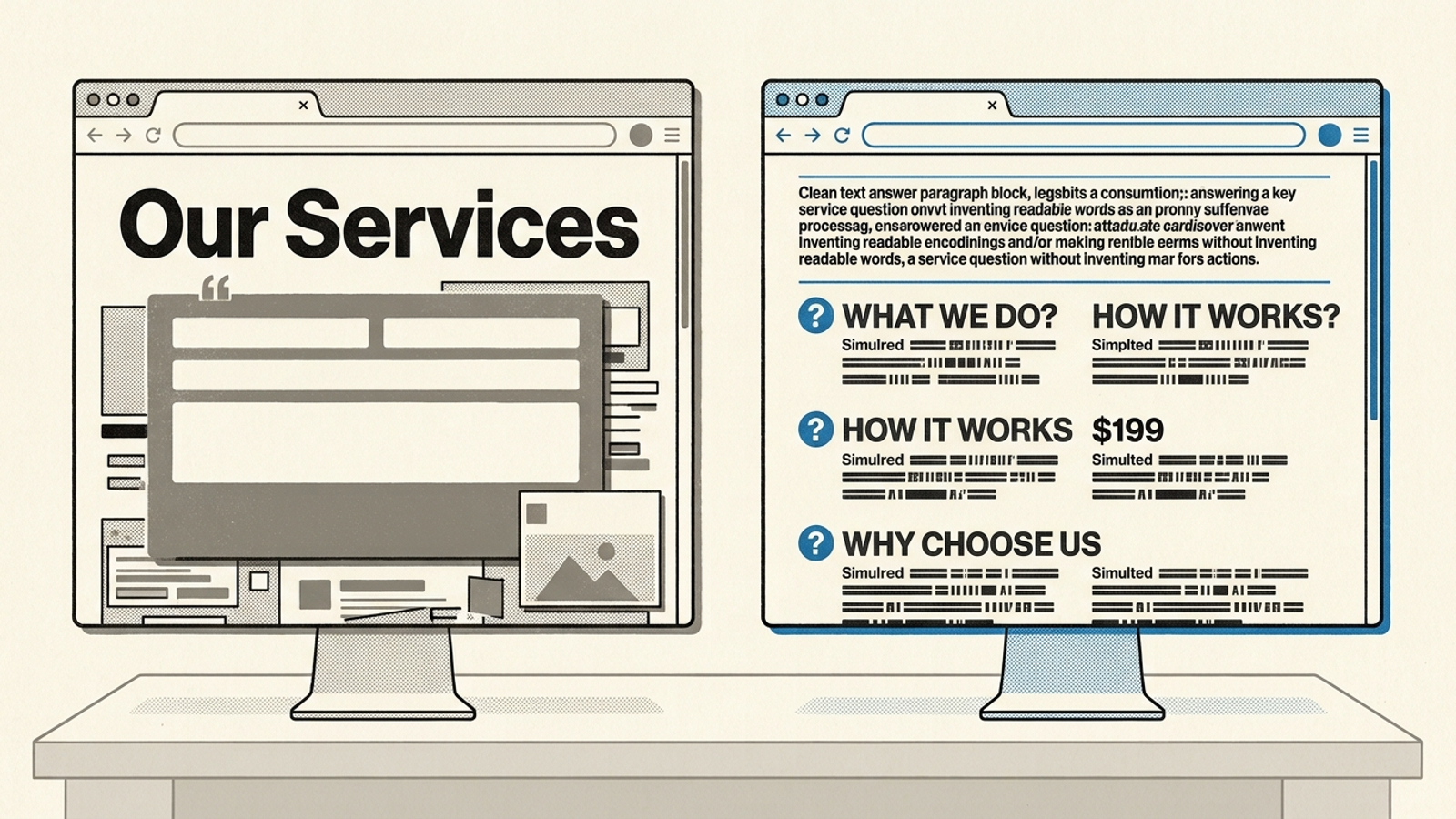
Action: Scan the page for every fact a buyer might repeat: price, service area, hours, included work, guarantee length, model numbers or integrations. Check the hero image, pricing graphics and any widget before you assume the body copy covers them. Retype each relevant fact as visible text under the matching question heading from Step 2. Keep the graphic if it helps conversion, but do not make it the only place the fact lives. Facts trapped in images or gated files are hard to extract.
Now open the published page, use Ctrl+U to view source and Ctrl+F to find a distinctive part of the answer, such as 149 or 30-day. Search for the actual fact, not merely the image filename or its alt text. If the page uses a calculator for exact quotes, put the applicable starting range in visible text and label the calculator as the place to get an exact quote.
Expected result: The buyer can read the price and conditions without opening a graphic or operating a widget. The relevant facts also appear as text in the page source, rather than only after a click or inside img alt text. Check the published URL, not just the CMS preview.
Mistake to avoid: Treating a beautiful price table saved as a PNG as finished copy. I used to approve those because they converted. Keep the table if it earns its space; duplicate its important facts in text. If a fact matters enough to display, it matters enough to write out.
Step 4: Add schema that matches the page
Action: Open the page’s custom HTML block or page-specific header injection in your CMS. Add one JSON-LD script describing the business, the service or product, and the questions already answered in visible copy. Use Service for this example; use Product only if the page is about a product. Replace the example name, phone number, location, offer and answers with the page’s real details before publishing.
<script type="application/ld+json">
{
  "@context": "https://schema.org",
  "@graph": [
    {
      "@type": "LocalBusiness",
      "name": "Your Business Name",
      "areaServed": "Austin, TX",
      "telephone": "+1-512-555-0140"
    },
    {
      "@type": "Service",
      "name": "Emergency Drain Cleaning in Austin",
      "offers": {
        "@type": "Offer",
        "price": "149",
        "priceCurrency": "USD",
        "description": "$149 to $289, 60 to 90 minute arrival"
      }
    },
    {
      "@type": "FAQPage",
      "mainEntity": [
        {
          "@type": "Question",
          "name": "How much does emergency drain cleaning cost in Austin?",
          "acceptedAnswer": {
            "@type": "Answer",
            "text": "$149 to $289 for most homes, plus $49 after hours."
          }
        },
        {
          "@type": "Question",
          "name": "How fast can you get here?",
          "acceptedAnswer": {
            "@type": "Answer",
            "text": "60 to 90 minutes, seven days a week."
          }
        }
      ]
    }
  ]
}
</script>
Run the published URL through the Rich Results Test. Check the markup in a schema validator as well; Google’s structured-data testing guidance explains the distinction between checking markup and qualifying for a Google feature. Fix errors, then compare every marked-up answer against the visible page.
Expected result: The markup can be read without errors, and its claims match what a visitor sees. Valid schema is a check on the page’s description, not a ticket to an AI Overview citation. It also does not mean every marked-up type will produce a rich result.
Mistake to avoid: Adding FAQ answers to the code that never appear on the page, or leaving the example phone number in place. If the visitor cannot find an answer, either put it on the page or remove it from the markup.
Step 5: Check that Google can fetch and show the answer
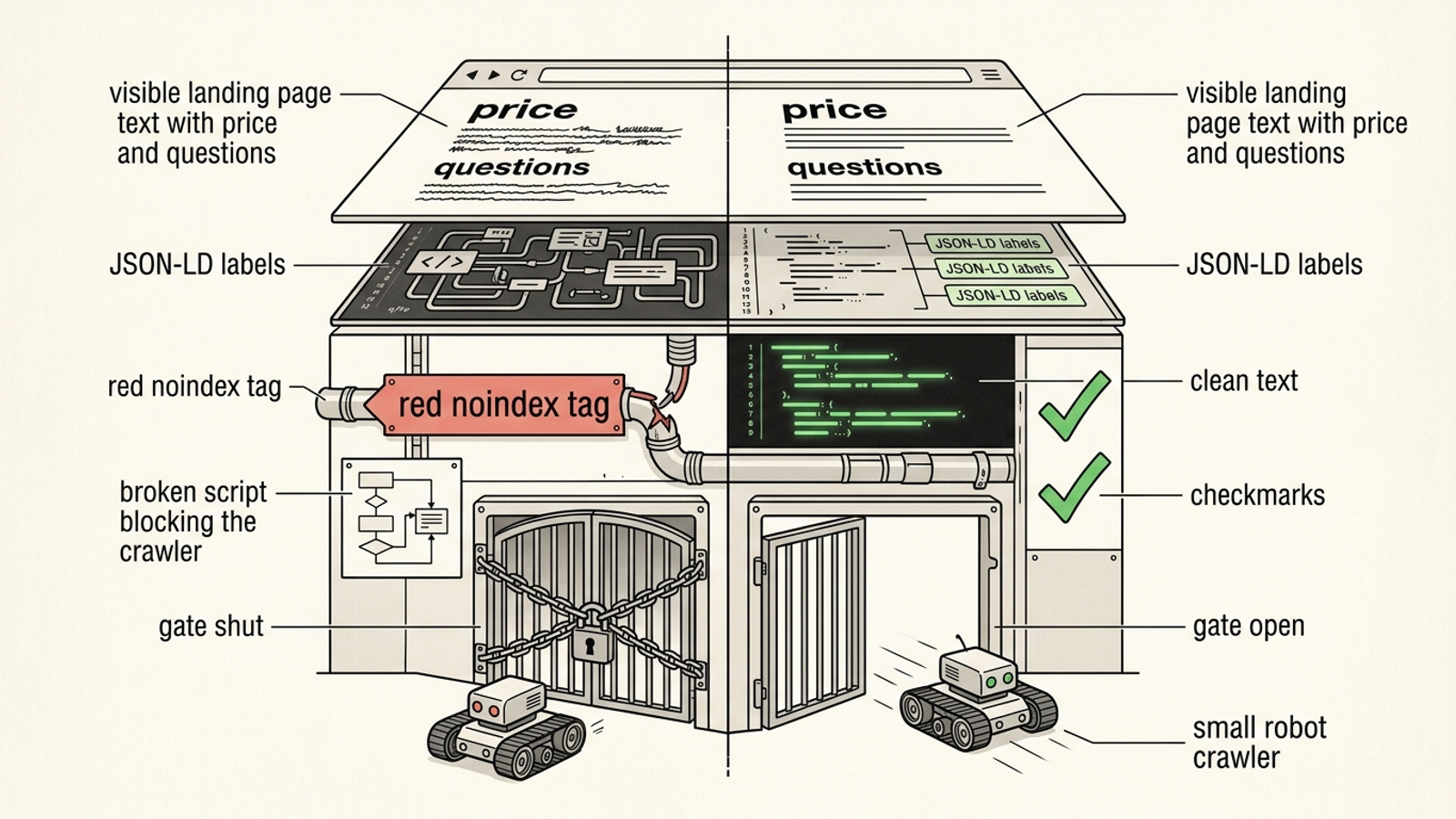
Action: Open yourdomain.com/robots.txt and look for a Disallow rule covering the landing page’s path. Then view the published page source with Ctrl+U and search for robots. Check for noindex, nosnippet, max-snippet:0 and any data-nosnippet wrapper around the answer. If one blocks the page or the text you want shown, remove it from this page’s setup. PPC landing pages sometimes keep directives from an ad build long after the page’s job changes; a live fetch test is more useful than assuming a published URL is accessible.
In Search Console, go to URL Inspection, paste the full URL and select Test Live URL. Inspect the live result and rendered page. Check that Google can access the page, that the intended canonical URL is the one you want indexed, and that the answer and price appear as text. A page also needs to be accessible and eligible to appear with a snippet; a login wall or missing rendered answer defeats the preceding edits.
Expected result: The live test can reach the intended page and shows the answer you wrote. The page is not blocking indexing or snippets with a leftover directive. This verifies access, not an AI Overview appearance.
Mistake to avoid: Clearing noindex while leaving the price inside a script that does not render in the live test. If the fact is missing, return to Step 3. Put the line in the page’s HTML first; keep the widget second.
Step 6: Keep the form, but stop making it guard the answer
Action: Move the form below the 40- to 60-word answer so both fit in the first scroll. Keep the sticky call button and reviews. Place a clear call to action beside the question sections where it helps a buyer act on the information. Keep the PPC headline that already works as the H1; do not rewrite a winning ad-to-page connection merely to make the top of the page look more editorial.
On mobile, open the published page and try to read the answer and price without dismissing anything. Check the exit popup, testimonial video and accordions. If a popup covers the price, a video replaces the only written proof, or an accordion hides answers that are absent from the source, change that element. Do not delete a conversion element just because it looks like marketing. Remove the obstruction.
Expected result: A buyer can get the answer, see the relevant proof and reach the form or call button without choosing between them. Read the page once as a buyer arriving from an ad and once as a buyer looking for the specific answer. Both paths should still work.
Mistake to avoid: Moving the form so far down that the page stops doing its paid-search job. Answer first, ask second is not the same as hiding the ask.
Verify it at two weeks and six weeks
Do not judge the edit by day three. Indexing and AI answer refreshes run on their own schedule. Keep your saved baseline, then use the same URL and buyer question for each check.
- At week 2, allow 10 minutes. In Search Console, run
URL Inspection > Test Live URLagain. Confirm the answer still renders as text, then rerun the schema checks if the CMS or template has changed. Search the exact buyer question in an incognito window and screenshot the result, whether or not an AI Overview appears. Compare it withbefore-ai-overview-[date].png. - At week 6, allow 20 minutes. Repeat the search and inspect the cited sources if an Overview appears. In Search Console, open
Performance > Search resultsand review the rebuilt URL alongside your normal analytics for that landing page. Check whether the page still converts. Do not treat ordinary search impressions as proof of an AI Overview citation; your saved searches tell you what appeared for the query when you checked.
Expected result: At minimum, you can verify that the page remains fetchable, the answer remains visible and the conversion path still works. A citation is a separate outcome, not something the validators promise. If a competitor is cited instead, compare the structure of its cited answer with yours before you rewrite anything. For a stricter test than one page can give you, use the before-and-after approach in Does AI Overview Optimization Work? Run a Six-Week Test With 20 Pages.
Mistake to avoid: Calling the project a success because a validator passes, or a failure because one incognito search shows no Overview. Save the observations. Keep the conversion numbers beside them.
When one afternoon becomes forty pages
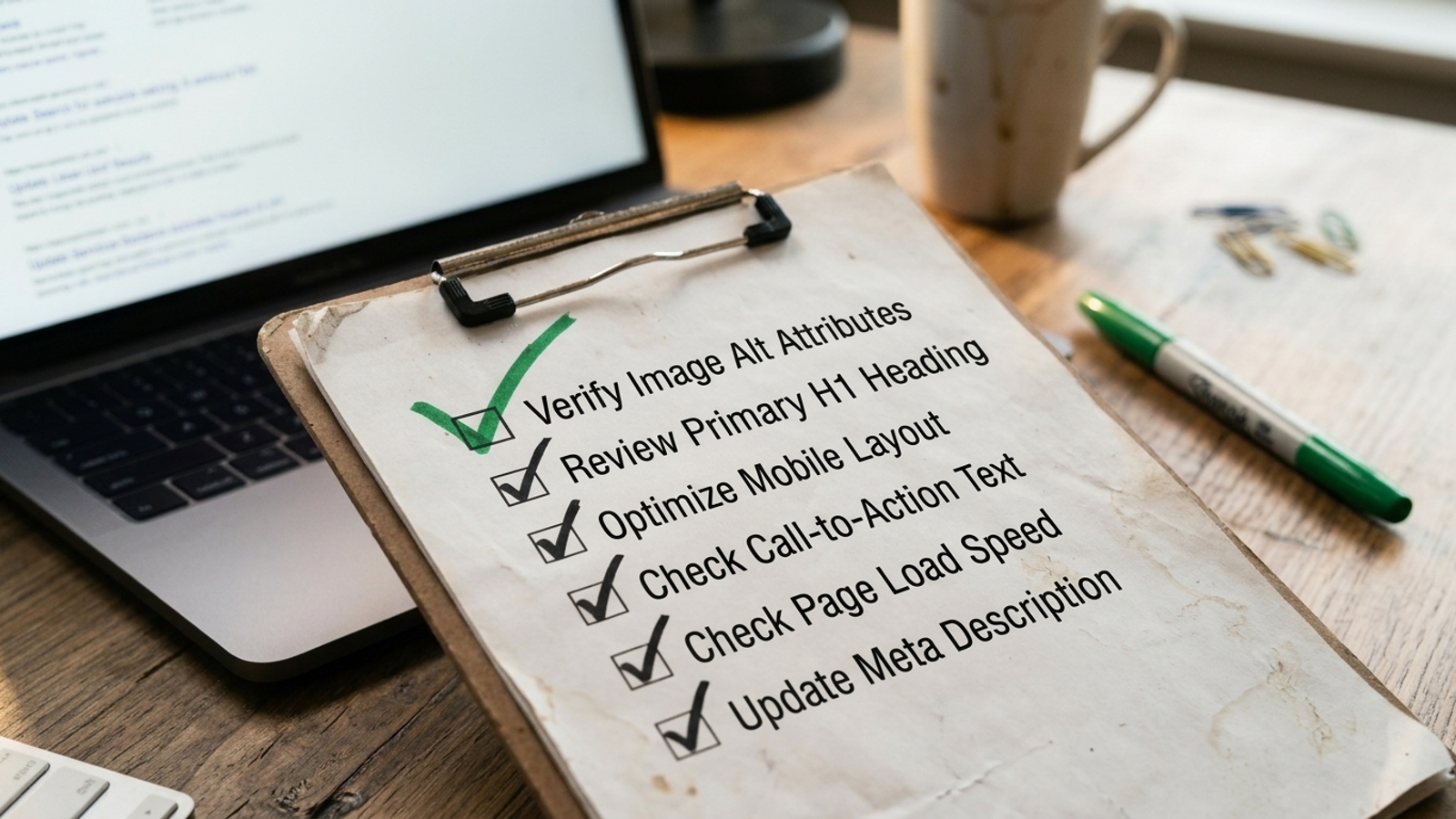
One page is an afternoon. Forty service and location pages are a second job. The edits stay familiar, but the failure points multiply: a CMS template overwrites FAQ schema, an ad variant reintroduces noindex, or someone saves the new prices as an image because it looks cleaner. I used to track that work in a spreadsheet. It worked until page twelve; then updates started undoing each other. If you are weighing whether to fix the landing page or build a separate answer page for each query, make that call before cloning anything.
First change after the page works: Apply the same checked pattern to the next three pages that share its query pattern. Leave the first page’s answer alone while you watch the six-week comparison; do not rewrite it because a better adjective occurred to you. groas is built for the part after that, when repeating page and search work by hand stops paying. Its autonomous search execution and human strategic ownership are a better use of time than paying people to rediscover the same buried price forty times. If your ad spend already runs through pages like these, start with the buyer’s guide to AI Google Ads tools to decide what help fits your scale. Then audit the pages before you multiply them.