

 LinkedIn

A live MCP connection does not make ChatGPT’s marketing numbers trustworthy. It reduces guessing, but the assistant can still round, merge date ranges and fill gaps in partial results. I treat the connection as the start of verification, not the end. Say an account spends $20k a month and the assistant returns last week’s ROAS: the tool calls, not the confidence of the sentence, tell me where that figure came from. These five checks separate fetched data, visible calculations and numbers the model cannot support.
Before the checks: separate the fetch from the answer
- Treat a live groas connection as access to account data, not proof that every number in the answer came from it; the setup is covered in ChatGPT Is Guessing About Your Ads. Make It Read the Numbers..
- Keep the returned data and the assistant’s interpretation separate. A valid tool call can sit above an invalid total, an incomplete table or a ratio calculated the wrong way.
- Watch for three recurring problems: mismatched dates, partial fetches presented as complete totals, and arithmetic that looks plausible until the inputs are visible.
- Treat a polished answer as something to inspect, not something to forward; the useful question is whether the tool output supports the specific figure being reported.

Check 1: Find the groas call behind the number
- Ask:
Which groas tool call supports this figure, and what arguments did you send?Start with the number being reported, not a general assurance that the assistant is connected. - Expand the tool call and read the returned data before the summary sentence. In ChatGPT, inspect the available call details; in Claude, look for the tool-use block in the transcript.
- Check that the call supports the metric in question: a spend response does not, by itself, support a revenue figure or a ROAS calculation that also needs revenue.
- Locate the reported figure in the output, or locate the inputs used to calculate it; a derived number need not appear verbatim, but its calculation must be traceable.
- Read the arguments as well as the response. The right tool called with the wrong account, dates or filters still gives the assistant the wrong evidence for its answer.
- Reject “I used your connected account” as a substitute for the call itself; that sentence describes what the assistant says it did, not what the returned data shows.
- Remember why this matters: OpenAI describes how training can reward guessing over admitting uncertainty; a specific-looking number is not evidence of a fetch.
- Stop if the figure exists only in the prose. I treat unsupported spend, revenue, CPA and ROAS figures as drafts, not numbers ready for a client report or budget decision.
Check 2: Match the account, dates and timezone
- Ask:
What account, exact start date, end date and timezone did each supporting call use?Make the assistant state the slice it fetched, not repeat the period you requested. - Replace “last week” and “recently” with fixed dates before checking the answer; those labels hide the boundaries that decide which spend and conversions belong in the total.
- Read every relevant call’s dates, not just the first one; an answer assembled from several requests can combine one correct period with another that does not belong.
- Check that the answer describes the period actually returned. Data for August 1–7 does not support a statement about August as a whole, however neatly the sentence is written.
- Confirm the account selection alongside the dates; the right week from the wrong account does not become useful because the total happens to look familiar.
- For a familiar metric, compare the same fixed slice in Google Ads or Meta; Supermetrics recommends this verification approach, with account, dates and timezone among the first things to inspect.
- Keep each platform’s period visible when the answer combines channels; do not let a single “last month” label stand in for checking the individual calls underneath it.
- Fail the date check when the boundaries remain unstated or do not match. Ask for the exact slice again before debating why the reported total differs from the platform.
Check 3: Reconcile the rows before trusting the total
- Ask:
Show the rows, columns, filters and formula behind this total, including what you excluded.A bottom-line figure alone does not reveal whether the assistant summed the right material. - Add the channel subtotals yourself and compare them with the reported total. Check the arithmetic on the returned rows before accepting the assistant’s explanation of what those rows mean.
- Check units before adding fields: Meta spend and Google’s raw cost_micros are not interchangeable; cost_micros represents millionths and needs conversion before comparison with ordinary currency amounts.
- Inspect the actual returned fields rather than assuming every spend column uses the same representation; the relevant question is what the tool returned and how the assistant handled it.
- Check for subtotal rows mixed with detail rows, duplicate rows and filters that remove part of the dataset; each can produce a tidy total from the wrong set of inputs.
- Ask for included and excluded row counts; without them, it is harder to tell whether the displayed table represents the whole fetch or only the portion used in the answer.
- Keep conversion definitions visible across platforms; adding fields with different meanings does not produce a useful combined metric simply because both columns are labeled “conversions.”
- Separate display rounding from the underlying arithmetic; ask the assistant to calculate from the returned values and round the result, rather than calculate from already-rounded summaries.
- Hold the total if the rows, units or exclusions remain unclear. Precision after the decimal point does not repair a sum built from mismatched inputs.

Check 4: Re-fetch by period and compare the parts
- Ask:
Fetch spend or revenue split by week, then fetch the same metric for the full month and show whether the weekly parts reconcile.Keep the account, definitions, currency and filters unchanged. - Request another fetch, not another version of the paragraph. Regenerating the explanation is not the same as independently checking the data; Coupler.io makes the same distinction about verifying totals.
- Inspect the new calls for the dates used in each weekly slice; the parts must cover the requested month before their sum can meaningfully be compared with the monthly total.
- Check the joins between periods: no missing days, no overlapping dates, and no days outside the requested month; a list of weekly labels is not enough to establish that coverage.
- Check for partial results, truncation or rate-limit problems in the available output; multi-request reporting can return incomplete data without the final prose making the gap obvious.
- Add the weekly spend or revenue values and compare the sum with the full-month result; make the discrepancy visible rather than accepting “the numbers are broadly consistent” as a reconciliation.
- Treat disagreement as a failed check, not automatic proof of one particular cause; inspect the fetches, account selection, date boundaries and definitions before naming the problem.
- Check currency, conversion definition and API delay before treating recent figures as final; the same wording in two answers does not establish that both used the same inputs.
- Do not choose whichever total looks more believable. If the weekly parts and monthly figure disagree, keep the result unresolved until the supporting calls explain the difference.
Check 5: Put every ratio beside its inputs
- Ask:
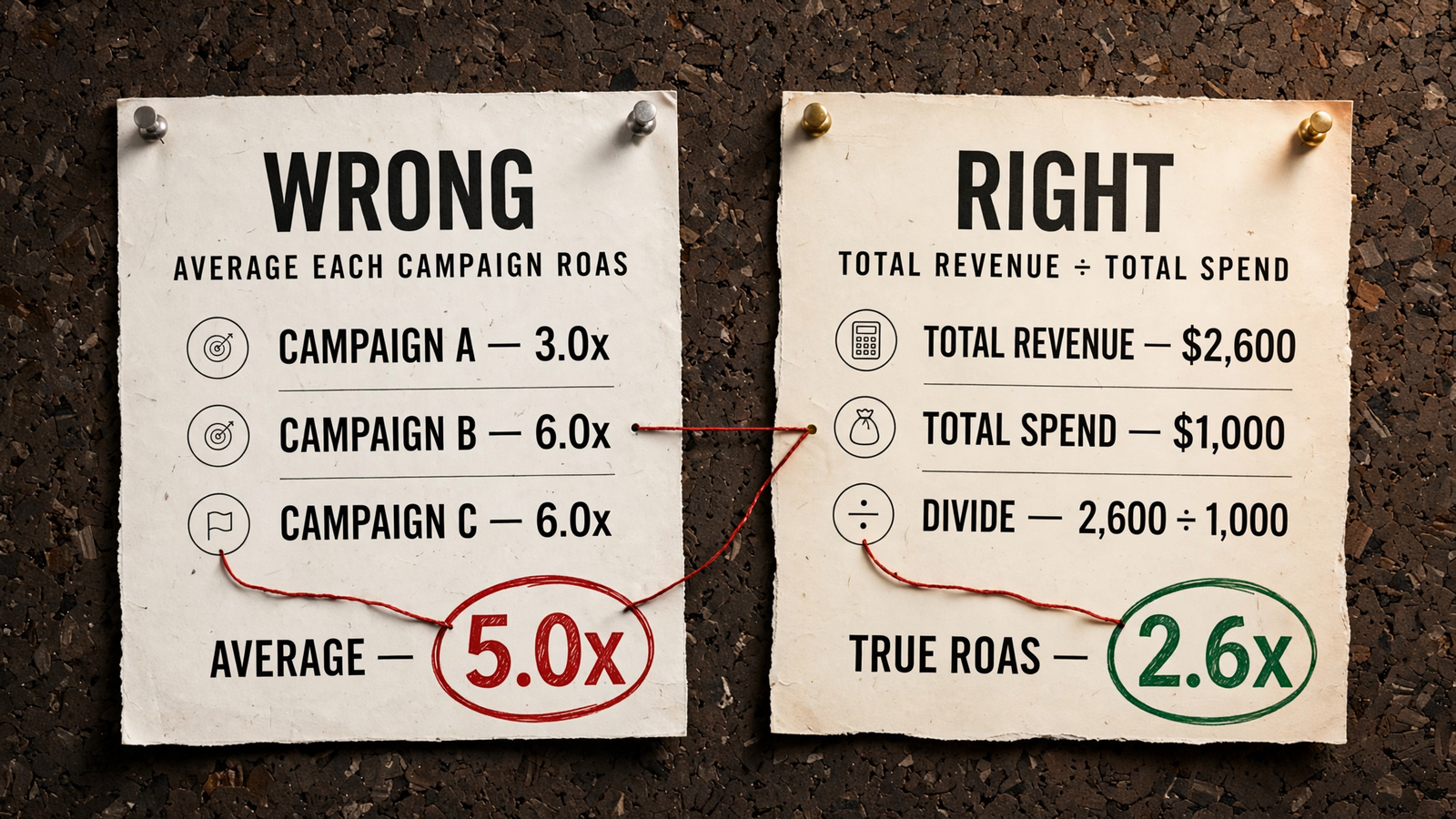
Show the inputs and exact formula beside each computed metric: revenue, spend, conversions, then the division.A ratio without its inputs is a rumor with formatting. - For account ROAS, require total revenue divided by total spend—not the average of campaign ROAS values. The formula decides what the number means before anyone decides whether it looks good.
- Use the 5.0x versus 2.6x example as the warning: averaging campaign ratios and dividing total revenue by total spend produced different answers from the same data.
- Require spend and conversions beside CPA, and revenue and spend beside ROAS; the assistant should not make the reader hunt through separate paragraphs to reconstruct the calculation.
- Keep the scope aligned across numerator and denominator; the date, account and filter checks still apply when two fetched values become one apparently simple ratio.
- State currency, attribution window and conversion name alongside the inputs; a mathematically correct division can still answer the wrong business question when those definitions differ.
- Trace the inputs back to the returned rows, not merely to another sentence in the answer; copying an unsupported revenue figure into a formula does not make the resulting ROAS supported.
- Keep fetched inputs and calculated outputs visibly labeled; the reader should be able to distinguish what groas returned from what the assistant calculated without reconstructing the entire conversation.
- Withhold the decision when the inputs are missing. A clean ratio is the easiest number to forward and the hardest one to interrogate once the choices inside it disappear.
Copy these prompts after a reporting answer
List each supporting groas tool call, its arguments and the rows returned; identify any figure the output does not support.Restate the account, exact start and end dates, timezone and currency for every reported figure, using the actual call arguments.Show the table you summed, the fields and units used, and the included versus excluded row counts; distinguish returned values from rounded display values.Re-fetch spend or revenue split by week and as a full-month total; show the date boundaries, reconcile the parts and explain any mismatch without filling gaps.Show every ratio beside its inputs and exact formula; for account ROAS, divide total revenue by total spend rather than averaging campaign ratios.
When a check fails, repair the request before the number
- Stop using the disputed figure; do not ask the assistant to make it look more accurate or produce a more confident explanation of the same unsupported result.
- Ask it to state the account, filters, exact dates, timezone, metric definition, currency and conversion name before fetching again; Supermetrics recommends restating filters and definitions before rerunning.
- Keep the discrepancy explicit: if weekly parts total $18,400 while the monthly answer says $21,900, ask the next fetch to resolve that difference rather than silently replacing either figure.
- Inspect the replacement calls and returned rows; a clearer request helps expose the missing piece, but it does not guarantee that the second answer fixes it.
- Repeat the failed check against the new output; corrected dates still need matching rows, and matching rows still need the right formula before a ratio passes.
- Leave unsupported figures unresolved. The useful answer may be that the available output cannot support the requested total; an empty space is preferable to a number invented to fill it.
The item most often skipped—and what it costs
- Show the inputs beside every computed metric before acting. This is Check 5, and it is the one teams most readily skip: a clean ratio hides which inputs and definitions went into it, including revenue, spend, conversions, attribution window and currency. The 5.0x-versus-2.6x example shows the cost of hiding the formula: the same data can look very different when campaign ratios replace account-level math. That can feed a budget increase on a number that does not mean what the reader thinks it means. My house rule is simple: no revenue and spend on the page, no decision off the page.


