

 LinkedIn

The best Monday marketing brief is one nobody has to remember to run. Schedule the reporting chore, not the decision: let an agent pull the numbers, explain what moved and leave proposed changes waiting for approval.
By the end of this tutorial, you will have a weekly workflow that calls groas, compares two complete weeks and produces a one-page brief. It reports spend, conversions, CPA and ROAS, flags exceptions and proposes changes. It does not change your ad accounts.
Before starting, have these ready:
- A groas account with your ad accounts and website connected.
- An assistant with scheduling and authenticated groas tool access during scheduled runs, or an authorized agent script with a groas API key.
- One delivery destination and one named approver.
- Your account scope, reporting timezone and performance targets.
The distinction between scheduling and tool access matters. An assistant that can remind you to run a report has not necessarily learned to run it.
1. Choose the route that can actually call groas
Pick one path before configuring the brief:
| Route | Use it when | Prove this before proceeding |
|---|---|---|
| A: Scheduled assistant task | You want a no-code workflow inside your assistant. | The scheduled task can call authenticated groas tools, not just generate text. |
| B: Scheduled agent script | You need a file, logs or a workflow covering several client accounts. | The runner can authenticate, call groas and save its output without an interactive session. |
ChatGPT’s scheduled tasks provide a scheduling option, but a recurring task alone does not prove that your connected tools will be available when it runs. Check that separately.
Action: Choose Path A or Path B. Set the intended cadence to Monday, 06:00 in your reporting timezone, where your scheduler supports that exact time.
Expected result: One route owns the weekly run. There is no second task producing a competing version of the same brief.
Common mistake: Picking the assistant you already use without testing its scheduled tool access. I would rather discover that limitation during setup than receive a beautifully written report with no fresh numbers.
2A. Connect groas and test the scheduled assistant
Skip this section if you chose Path B.
Connect before scheduling
Action: Follow the groas MCP setup for your assistant. Use the groas connection endpoint when the setup asks for it:
https://mcp.groas.ai/mcp
Complete authorization, then ask the assistant to retrieve reporting data for the accounts you intend to include. Start with read-only access wherever the connection permits it.
Expected result: The assistant returns account data through groas rather than asking you to paste a spreadsheet.
Common mistake: Treating a visible connection as proof of a working connection. A successful data pull is the test.
Create the recurring task
Action: Create a weekly task using your assistant’s scheduling controls. Set the day to Monday, the time to 06:00 where supported, and confirm the timezone. Paste the prompt in section 3 into the task instructions.
Put the account scope, targets and reporting rules directly in those instructions. Do not assume the task can read files or context from another chat.
Expected result: The task shows the intended recurring schedule and retains the full reporting instructions.
Common mistake: Scheduling “send my usual report” and expecting the assistant to reconstruct what usual means every week. Give the task its own complete brief.
Test the scheduled execution context
Action: Run a test through the scheduling workflow and check whether it can call groas with authorization. Confirm that its output contains fresh reporting data and the correct date ranges.
Expected result: The task retrieves data without a new sign-in or a manual prompt supplying the numbers.
Common mistake: Testing only in an ordinary chat. A scheduled message does not establish authenticated tool access. If the scheduled run cannot use groas, use Path B rather than trusting the clock to fix it.
2B. Schedule an authorized agent script
Skip this section if Path A passes its scheduled-access test.
This route needs a working agent runner, not just an API key and optimism. Use the weekly API-driven script and report as the starting pattern, then configure it for the prompt below.
Store the key outside the prompt
Action: Create a groas API key using the groas setup instructions. Store it in the runner’s environment as GROAS_API_KEY, not in the report prompt or a committed script.
Expected result: The runner authenticates without exposing the raw key in the brief or its instructions.
Common mistake: Pasting the key into a chat so the agent can “remember” it. Credentials belong in the execution environment, not the weekly brief.
Configure the weekly job
Action: Configure your scheduler to invoke the working, authorized runner at 06:00 every Monday. The cron schedule expression is:
0 6 * * 1
That is the schedule field, not a complete executable job. Point it at your actual runner. Configure that runner to use the prompt below, write the report to monday-brief.md and retain a run log such as brief.log.
Confirm the scheduler’s timezone and make sure GROAS_API_KEY is available in its execution environment. Choose where errors go before enabling the recurring run.
Expected result: A test run creates a dated brief and a log showing whether data retrieval and report generation succeeded.
Common mistake: Scheduling a command that works in your terminal but cannot authenticate when it runs unattended. Test the scheduled job, not merely the script.
Keep execution read-only
Action: Restrict the runner’s access to reporting wherever possible. Keep the instruction Draft proposals. Do not execute. at the top of the prompt.
Expected result: The runner retrieves data and writes its report without changing ads, bids, budgets, keywords or creative.
Common mistake: Treating a prompt as a permission boundary. Use restricted access as well as instructions; do not give the reporting job write access just because the first run succeeds.

3. Paste a prompt that produces decisions, not commentary
Use two complete weeks for comparison. At 06:00 Monday, “last seven days” must not quietly include six hours of the new week.
Keep Google Ads primary conversions separate from GA4 key events. Otherwise, the review becomes an argument about definitions instead of a decision about spend.
Action: Replace the bracketed fields below, then paste the complete prompt into your task or runner configuration.
Draft proposals. Do not execute.

MONDAY MARKETING BRIEF

Accounts: [account names or IDs]
Reporting timezone: [timezone]
Targets by account/channel: [CPA, ROAS and other agreed goals]
Approver: [name]

Window: the last 7 complete days, ending Sunday, compared with
 the preceding 7 complete days. State both date ranges.

1. Retrieve reporting data from groas for the accounts above.
Include spend, conversions, CPA and ROAS for Google, Meta and
Microsoft/Bing where connected and available.
Keep Google Ads primary conversions separate from GA4 key events.
Do not combine incompatible conversion definitions into one total.

2. Write one page using these five blocks:
- TL;DR: outcomes versus the stated goals.
- Performance: current week versus prior week and goals.
- What changed: documented account changes and observed movements.
- What happens next: proposed actions, not executed changes.
- What the approver needs to decide or clarify.

3. Use only returned numbers and supplied targets.
State what is missing. Do not invent a source, target or explanation.
Separate observed changes from possible explanations.

4. For each proposal, show the account/campaign, what was detected,
the exact proposed change, why it is proposed and expected impact.
Do not invent a numerical impact forecast.
Wait for approval. Do not change ad accounts.

5. Return the brief to the configured workflow.
Do not independently publish, post or send it elsewhere.
Expected result: A repeatable, five-block brief that leads with outcomes and ends with decisions.
Common mistake: Asking “what changed and why” without separating evidence from inference. A plausible explanation is not a documented cause. Missing data belongs in the brief, not underneath confident prose.
4. Add explicit anomaly rules
A prompt that says “flag anything unusual” hands the definition of unusual to the agent. I prefer to make that decision before Monday.
Action: Add the following rules to the instructions. Treat these as starting thresholds, not a claim that every account needs the same alerts.
Flag these conditions:
- CPA is up 30% versus the prior complete week.
- CPA exceeds 2x the supplied target over the reporting week.
- CPA is 40% above the 14-day rolling average.
- Spend is zero on an active campaign.
- Conversions are zero on an active campaign.

Retrieve the comparison data needed for each rule.
If data or a target is unavailable, mark that rule as not evaluated.
Do not invent the missing input.
Do not report a numerical CPA when zero conversions prevents it.
Group overlapping flags for the same campaign.
These follow the shape of common CPA and zero-spend alert rules. Review the values against your accounts before saving them.
Expected result: Each flag names the campaign, the breached rule and the numbers behind it. Several rules firing on one campaign do not become several paragraphs saying the same thing.
Common mistake: Filling the brief with CTR and impression movements while the CPA problem gets one line. Check spend and conversion volume before writing the explanation. Prioritize flags that could change a decision.
5. Make approval a real boundary
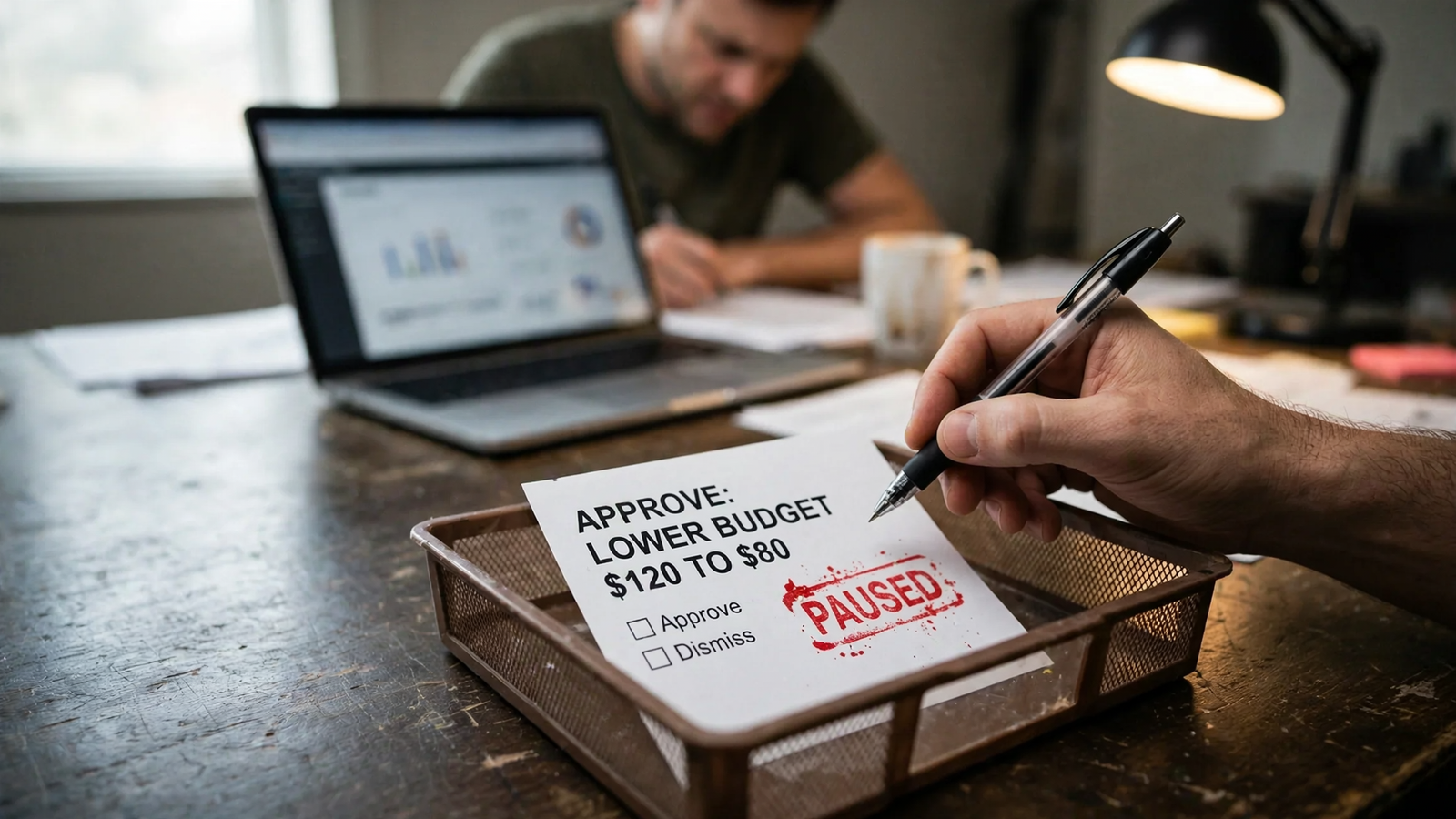
The report should arrive automatically. Account changes should not.
Action: Keep Draft proposals. Do not execute. as the first instruction. Name one approver and require every proposed change to include:
- The account and campaign affected.
- The condition that triggered the proposal.
- The exact change being proposed.
- The reason and expected impact, with uncertainty stated plainly.
- The approver’s decision before any separate execution step.
Use the human-in-the-loop workflow as the operating pattern: draft, check, queue, approve, execute with limited permissions, log. This tutorial stops at the approval queue; it does not configure automatic execution after a reply.
Expected result: A proposal contains enough detail to approve, edit or reject without another round of “what exactly do you mean?”
Common mistake: Quietly turning approval into a notification. “I changed the budget; let me know if that is wrong” is not approval. Keep groas autopilot off for this reporting workflow.
6. Deliver to one place and keep the decision there
Action: Choose one primary review destination supported by your workflow: the task’s chat, email or a shared Slack channel. Configure delivery there rather than asking the agent to improvise a destination.
For Path B, also retain monday-brief.md and the run log. The file is the record; the delivery destination is where someone reads it.
Keep the prompt’s restriction on independent sending. The configured workflow delivers the report; the agent does not gain permission to publish or message elsewhere.
Expected result: The approver sees the same five blocks in the same place every Monday. Delivery does not wait for approval; proposed account changes do.
Common mistake: Routing the brief everywhere and assuming that increases accountability. Nobody owns a decision that appears to belong to three different channels.
Action: Review in ten minutes: read the TL;DR, inspect the flags, then approve, edit or reject each proposal. Keep the decisions with the report so the record shows the run date, decision and decision-maker.
Expected result: One readable trail from evidence to proposal to decision.
Common mistake: Reviewing the charts and leaving the proposal list untouched. The useful output is the decision, not proof that the report ran.
7. Verify the run, then add competitor context
Do not call the setup finished because a task says it is active. Verify the output and the absence of writes.
- Check the run at
06:15Monday. Inspect the task history or scheduler log. Confirm completion and fresh groas retrieval, not merely a generated message. If it failed, inspect authorization, connection status and the schedule before rerunning. The mistake is treating a quiet inbox as a quiet account. - Match three figures to groas. Check spend, conversions and CPA for the same account or channel, dates, currency and conversion definition. Confirm the brief names two complete weeks and excludes Monday’s partial day. The mistake is comparing totals built from different scopes and blaming the arithmetic.
- Confirm zero account writes. Inspect change history in the connected ad accounts. There should be no changes from the reporting agent. Confirm the output contains proposals, not claims of completed changes. The mistake is accepting “draft only” in the prompt without checking what happened.
- Check delivery and ownership. Confirm the brief reached the chosen destination and the named approver can respond there. The mistake is proving generation while leaving review unowned.
A successful run has fresh data, matching figures, visible proposals and zero account changes. Keep the workflow unchanged until it produces two clean Mondays in a row.
Then change one thing first: add rival context. Ask the agent to retrieve the top three competitor ads groas saw that week and add three short lines beneath the flags: who appeared, what angle they used and whether that merits attention. Keep observations separate from guesses about a rival’s budget or results.
That is a better next step than adding another page of charts. The brief earns its keep when Monday starts with a decision, not a download.


