
YouTube Ads Won’t Get Fewer: Six Calls to Check by 2027
October 1, 2026
•
11
min read



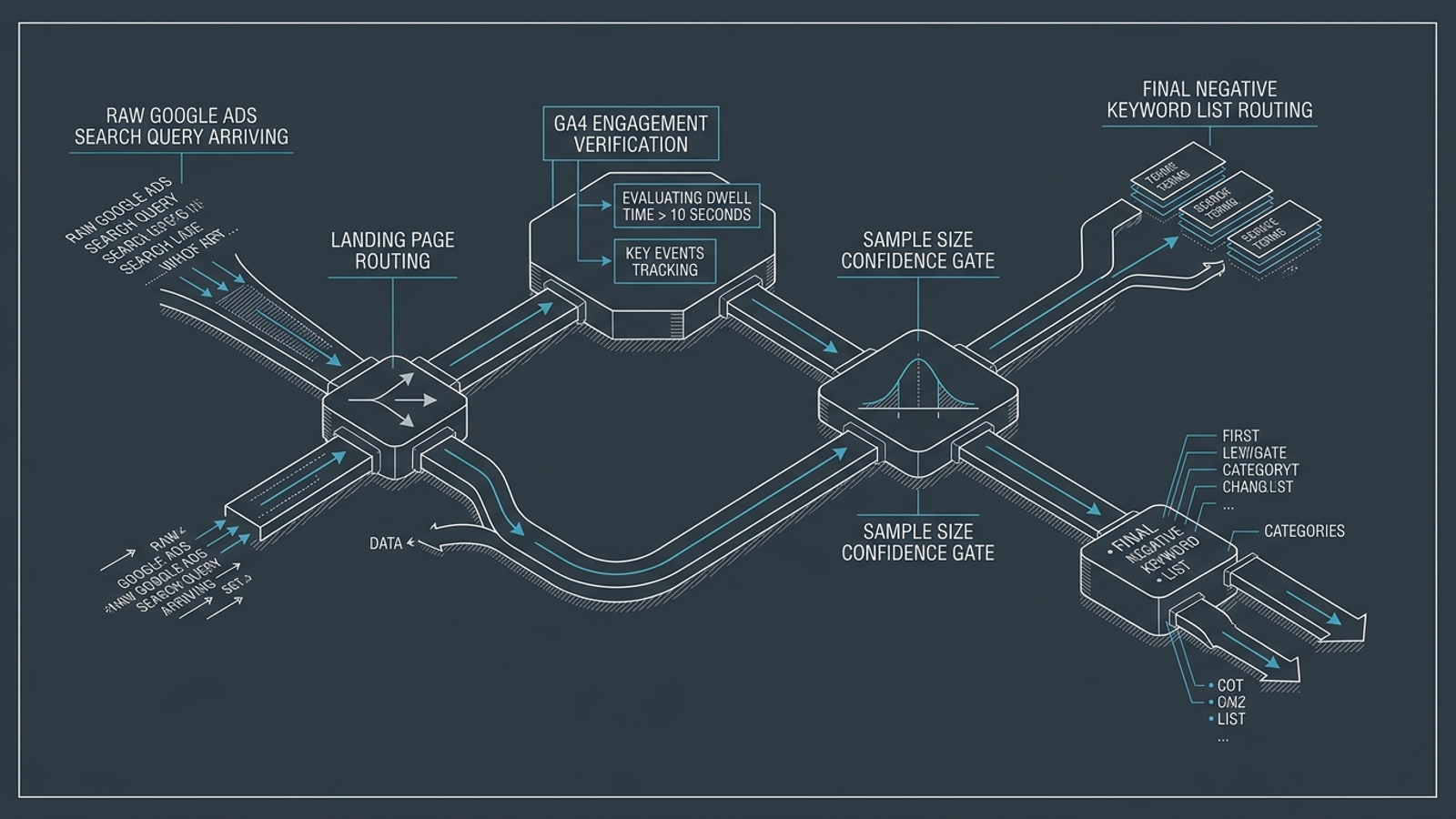
A tool that excludes Google Ads search terms because three visitors bounced is not managing your account. It is guessing with write access. Bounce rate alone is not a reason to add a negative keyword. In GA4, bounce rate is the inverse of engagement rate: a session counts as engaged if it lasts at least 10 seconds, includes two or more page views, or records a key event. Even a correctly measured unengaged session tells you little about a query after a handful of clicks.
By the end of this tutorial, you will have a spreadsheet that joins GA4 engaged sessions to Google Ads search terms, holds thin samples out of review, and produces a short list of candidates for negative keywords. You will still inspect intent before uploading anything. That is the point: see the decision logic before trusting a tool to execute it.
Before you start, have these ready:
Open GA4 > Explore > Blank exploration. Set a custom date range covering the last 30 days, but end it 72 hours ago to reduce the effect of incomplete conversion attribution. If spend is under $15,000 a month, use 60 days instead. Use that exact window again in Google Ads.
+ and import Session Google Ads query, Landing page + query string, and Session campaign. The GA4 Data API schema lists the query dimension if you need to check its name.+ and import Sessions, Engaged sessions, Engagement rate, and Key events.10 to 500.Session Google Ads query exactly matches (not set). Click Apply.Expected result: each exported row identifies a query, campaign, landing page, session count, and engaged-session count. Common mistake: omitting Session campaign. The same words can behave differently in different campaigns; a query-only join erases that distinction.
In Google Ads > Campaigns > Insights and reports > Search terms, set the same start and end dates you used in GA4. Then:
Search term, Campaign, Ad group, Clicks, Impressions, Cost, and Conversions.Added / Excluded to None so the review concentrates on terms you have not already acted on.Expected result: a file with the query, its campaign and ad group, and the clicks, cost, and conversions needed for triage. Common mistake: exporting account-wide totals without Campaign. inventory software in a broad-match discovery campaign is not necessarily the same decision as inventory software in a high-intent campaign. Keep the context.
Import the CSVs into two Sheets tabs named GA4_Raw and GAds_Raw. Put the columns in this order; move imported columns if necessary:
| Tab | A | B | C | D | E | F | G |
|---|---|---|---|---|---|---|---|
GA4_Raw |
Query | Landing page + query string | Campaign | Sessions | Engaged sessions | Engagement rate | Key events |
GAds_Raw |
Search term | Campaign | Ad group | Clicks | Impressions | Cost | Conversions |
Create a third tab, Triage_Model. Give columns A through J these headers, in order: Search term, Campaign, Clicks, Cost, Conversions, Sessions, Engaged sessions, Engaged-session rate, Cost per engaged session, Decision.
In Triage_Model!A2, paste this formula to make one row per search term and campaign:
=UNIQUE(FILTER(GAds_Raw!A2:B5000,GAds_Raw!A2:A5000<>""))
Paste the following formulas into row 2 of their respective columns, then fill them down alongside the resulting list:
C2: =SUMIFS(GAds_Raw!$D$2:$D$5000,GAds_Raw!$A$2:$A$5000,$A2,GAds_Raw!$B$2:$B$5000,$B2)
D2: =SUMIFS(GAds_Raw!$F$2:$F$5000,GAds_Raw!$A$2:$A$5000,$A2,GAds_Raw!$B$2:$B$5000,$B2)
E2: =SUMIFS(GAds_Raw!$G$2:$G$5000,GAds_Raw!$A$2:$A$5000,$A2,GAds_Raw!$B$2:$B$5000,$B2)
F2: =SUMIFS(GA4_Raw!$D$2:$D$5000,GA4_Raw!$A$2:$A$5000,$A2,GA4_Raw!$C$2:$C$5000,$B2)
G2: =SUMIFS(GA4_Raw!$E$2:$E$5000,GA4_Raw!$A$2:$A$5000,$A2,GA4_Raw!$C$2:$C$5000,$B2)
H2: =IF(F2>0,G2/F2,"")
I2: =IF(G2>0,D2/G2,"")
The GA4 formulas sum across landing-page rows rather than grabbing the first match. Keep GA4_Raw intact: you will return to its landing-page column when a query needs human review. If an imported CSV puts data in different columns, rearrange the tab before using these formulas; do not trust a plausible-looking result from a misaligned sheet.
Format H as a percentage and D and I as currency. Column I is cost per engaged session: if clicks cost $3 each and 15% become engaged sessions, that works out to about $20 per engaged visitor when clicks and sessions are roughly aligned. It is a useful diagnostic, not a conversion metric.
Expected result: one campaign-level row per search term, with Ads cost beside GA4 engagement. Common mistake: using XLOOKUP on the query alone. If a query appears under multiple campaigns or landing pages, that returns one matching row, not the combined behavior you meant to evaluate.
I would not exclude a term after five bad clicks. If each visitor had a 50% chance of engaging, five unengaged visits in a row would still happen about 3.125% of the time. Spread that across hundreds of queries and noise starts looking remarkably like a strategy.
Put your target CPA in Triage_Model!M1, enter 30 in M2 for the minimum clicks, and enter 0.25 in M3 for the maximum engaged-session rate. If 1.5 times your account’s average clicks-to-convert figure is higher than 30, use that higher number in M2.
Now paste this into J2 and fill down:
=IF(E2>0,"LEAVE (CONVERTING)",IF(C2<$M$2,"HOLD (LOW CLICKS)",IF(F2<$M$2,"HOLD (LOW SESSIONS)",IF(D2<$M$1,"HOLD (LOW SPEND)",IF(H2<$M$3,"TRIAGE INTENT","LP AUDIT")))))
A TRIAGE INTENT row has zero conversions, enough clicks and GA4 sessions to inspect, spend of at least one target CPA, and an engaged-session rate below 25%. Those are review gates, not proof that the query is bad. The spend floor matters: cutting a non-converting term before it has spent one conversion target can also cut off a potential winner, a problem familiar from non-converting search-term reviews. Thin-sample decisions create the negative-keyword mistake that costs conversions.
Expected result: most low-volume terms say HOLD, converting terms say LEAVE, and only a smaller set reaches intent review. Common mistake: treating TRIAGE INTENT as an upload instruction. It is a request to read the search term.

Filter column J to TRIAGE INTENT and sort by Cost, highest first. For each row, find the matching query and campaign in GA4_Raw and read the landing-page URL. Then make one of two calls:
free open source warehouse simulator for college students, the words describe a school assignment, not your offer. Mark it for exclusion.enterprise warehouse management platform pricing, do not negate it just because engagement is 14% and conversions are zero. Inspect the landing page instead. Slow loading, an unskippable video, or a 14-field form before pricing are possible page problems, not evidence that the search itself is worthless.For rows marked LP AUDIT, check the landing page as well; those terms spent enough to notice but did not cross the low-engagement threshold. The mistake here is blaming the auction for a page failure. A spreadsheet can narrow the queue. It cannot read commercial intent for you.
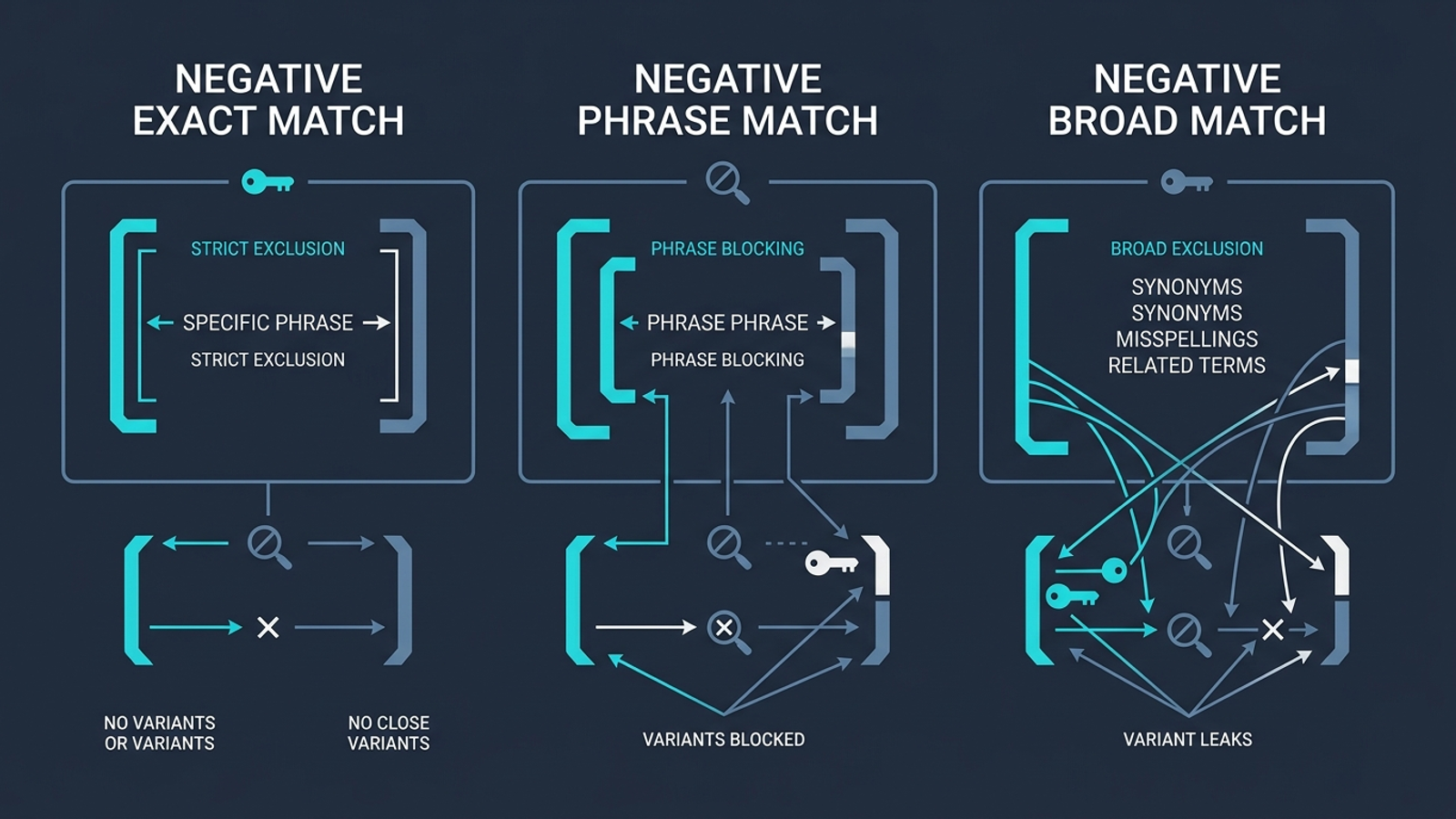
In a separate column, copy only the terms you judged irrelevant. Choose the narrowest match type that solves the problem. Google Ads negative keywords do not cover close variants the way many advertisers expect, so check plurals and related wording separately rather than assuming Google will infer them.
[term]: use when one full search string is unwanted but nearby wording may be valuable. For example, [free accounting software] does not mean every query about a free trial is unwanted."term": use when an unwanted sequence of words should be blocked wherever it appears in the query. "free open source" is a narrower decision than negating every search containing free.term: reserve for words you are comfortable blocking broadly, such as login, careers, internship, or syllabus. For multiword negatives, do not assume broad match means the words must appear in the same order.The negative match-type breakdown is worth keeping open while you format the list. A match-type error can block more useful traffic than the original bad query ever cost.
For negatives shared by the relevant Search or Shopping campaigns, go to Google Ads > Tools > Shared library > Negative keyword lists:
+ and name the list GA4 Unengaged Intent Exclusions.Expected result: the list shows the intended terms and is attached to the intended campaigns. Common mistake: applying a campaign-specific judgment across the whole account. A query that is junk in one campaign may deserve a different treatment elsewhere.
If the term is junk everywhere, consider the account-level exclusions under Tools > Shared library > Exclusion lists; Google’s account-level negative guidance describes that scope. For Performance Max-specific exclusions, use the campaign’s Settings > Negative keywords controls rather than assuming a Search campaign list covers PMax. The campaign-level PMax limit expanded to 10,000 negatives, but capacity is not a reason to paste in unreviewed terms. Before saving any entry, check Google’s stated 80-character and 10-word limits.
Repeat the two exports and refresh the sheet every two weeks. On a single brand spending $5,000 a month, that rhythm may be enough. Across $30,000 or $50,000 of complex Search and Performance Max spend, a closed spreadsheet leaves more time for bad queries to keep spending. That is a reason to automate the work, not to automate a bad rule.
At groas, we use a fully autonomous growth engine for paid search to monitor query and post-click signals continuously, execute within guardrails, and log actions for a named human strategist to oversee. I would still ask the same questions of any tool before giving it write access:
Verify it worked: after applying the list, confirm it appears on the intended campaigns and check the Search terms report seven days later for the specific queries you excluded. Look for new spend on those queries; do not assume every query containing a negated word is blocked, because match type determines the boundary. Then make the first useful change: review the highest-cost LP AUDIT or commercially relevant TRIAGE INTENT row and fix the landing page before excluding another search term. Otherwise, you have only taught the account to stop showing you the problem.
No. In GA4, bounce rate is the inverse of engagement rate, where a session counts as engaged if it lasts at least 10 seconds, includes two or more page views, or records a key event. Even correctly measured unengaged sessions say little about a query after only a handful of clicks, so engagement data should be joined with Google Ads spend data before making exclusion decisions.
Because the same words can behave differently in different campaigns. For example, a query in a broad-match discovery campaign is not necessarily the same decision as the same query in a high-intent campaign. A query-only join erases that distinction, and using XLOOKUP on the query alone returns one matching row rather than the combined behavior you meant to evaluate.
More than a handful. Five unengaged visits in a row can happen about 3.125% of the time even when each visitor has a 50% chance of engaging, so the recommended gates include a minimum of 30 clicks, or 1.5 times your account's average clicks-to-convert figure if higher, a minimum of 30 sessions, and spend of at least one target CPA before a term reaches intent review.
No, not on that evidence alone. A relevant pricing query with poor engagement may point to a landing page problem, such as slow loading, an unskippable video, or a long form before pricing. Inspect the landing page instead of negating the search, because blaming the auction for a page failure cuts off queries that could convert.
Use the narrowest match type that solves the problem. Exact match in brackets blocks one full search string while leaving nearby wording available, phrase match in quotation marks blocks an unwanted word sequence wherever it appears, and broad match should be reserved for words you are comfortable blocking broadly, such as login or careers. Negative keywords do not cover close variants the way many advertisers expect, so check plurals and related wording separately.
Create the list under Google Ads Tools, Shared library, Negative keyword lists, then apply it only to the campaigns for which those exclusions make sense, since a query that is junk in one campaign may deserve different treatment elsewhere. After applying, check the Search terms report seven days later for the excluded queries and look for new spend on them, remembering that match type determines the boundary.
Repeat the two exports and refresh the sheet every two weeks. That rhythm may be enough for a single brand spending around $5,000 a month, but at $30,000 or $50,000 of complex Search and Performance Max spend, a closed spreadsheet leaves too much time for bad queries to keep spending, which is a reason to automate the work rather than automate a bad rule.