

 LinkedIn
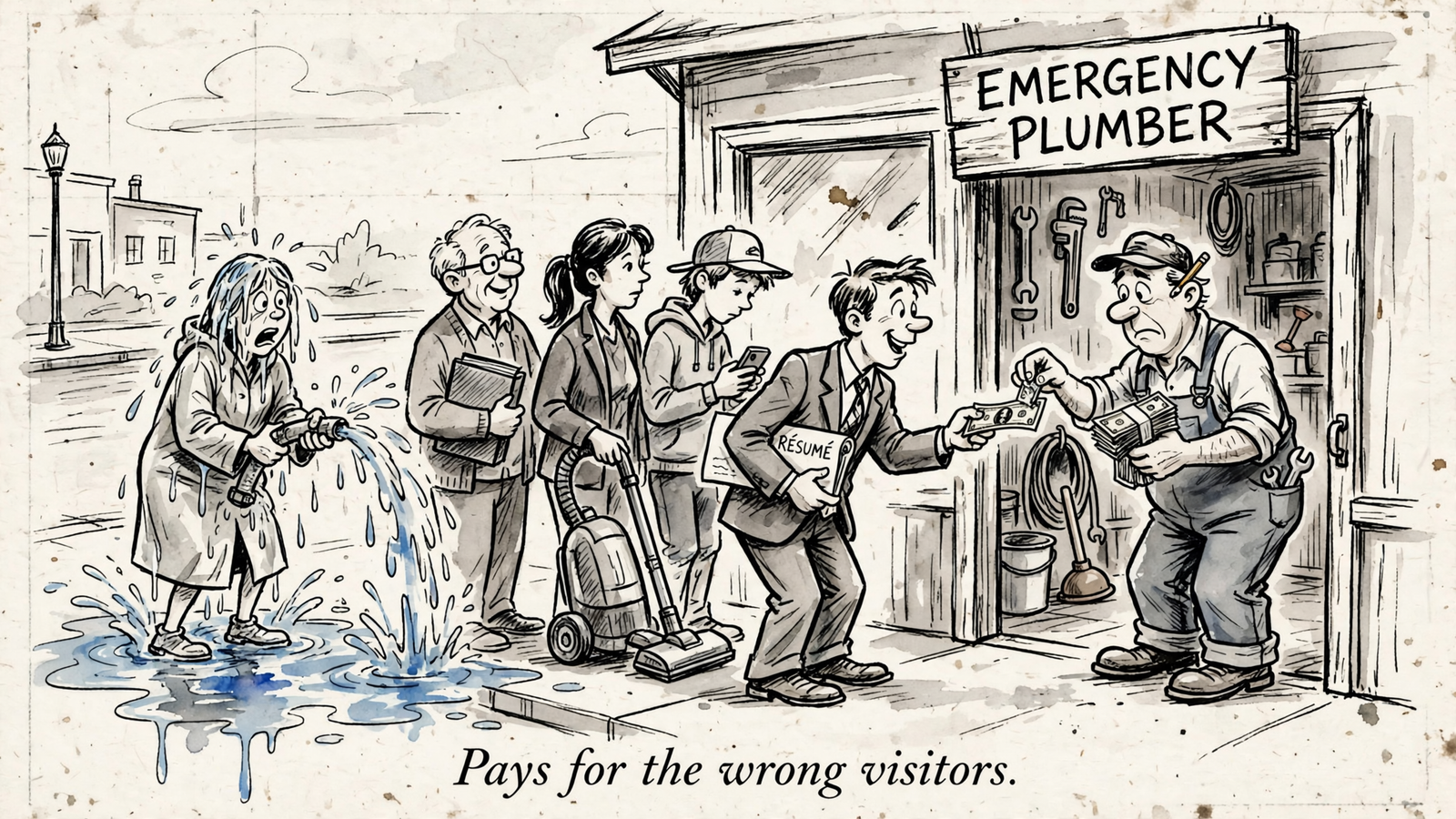
Paste one prompt into an assistant connected to Google Ads, and it can group your zero-conversion search terms, total their spend, and draft negatives in minutes. I still make the decisions. I no longer need to sort 200 rows to find them.
By the end of this walkthrough, you will have search terms grouped by intent, spend attached to each group, and approved negatives applied at the right level. You will also have a change log and a way to check whether the cleanup helped.
Before starting, have:
- A Google Ads account with conversion tracking you trust.
- ChatGPT or Claude with groas connected.
- About 15 minutes to review the recommendations.
One price check before we start: groas is $19 a month flat, not free, for unlimited teammates and ad accounts, as listed on the pricing page. Better to say that now than bury it after the instructions.
Step 1: Connect the account and check the conversions
In groas, connect your Google Ads account and website. Then add groas to ChatGPT or Claude through the AI Assistants page. The homepage overview shows the connection sequence.
Ask your assistant:
List the Google Ads accounts you can see.
Expected result: it names your account rather than asking you to upload a CSV. Confirm that it is the account you intend to review before continuing.
Next, open Google Ads and check Conversions against your CRM or Shopify orders for the last 30 days. Look for double counting or a broken import. Do not approve negatives while the purchase event is still in doubt.
The mistake: connecting the account and immediately asking the assistant to fix it. If tracking missed the sale, a perfectly useful search term looks like waste. The assistant cannot rescue a decision built on the wrong conversion count.
Keep this review read-only until you explicitly approve a change. Connection is not approval.
Step 2: Paste the search-terms prompt
Use this prompt for the initial review:
Pull search terms from the last 30 days with spend and no conversions.
Group them by intent, show clicks and cost per group, estimate wasted spend, and propose negatives with match types.
Don't apply anything yet.
Expected result: a table of intent groups, their clicks and cost, and proposed negatives. Treat the spend as candidate waste, not a verdict. No conversions is a filter. It is not proof that nobody behind those clicks would buy.
Keep the final sentence. It separates analysis from permission to change the account.
The mistake: shortening the window to last 7 days because recent data feels more useful. Conversions can arrive after the click, making recent terms look worse than they are. The search-terms filter guide explains that lag problem.
I use the last 30 days as a starting point for accounts spending, say, $20k a month. For smaller accounts, I use last 90 days ending 14 days ago instead. Replace the date range in the prompt before running it; do not compare one window against a different one later.
The useful output is a shortlist to judge, not a spreadsheet with a chatbot attached.
Step 3: Review intent groups, then inspect the terms
Ask for four or five useful groups, not 200 isolated rows. An illustrative output, not an account result, might look like this:
| Intent group | Zero-conversion spend | What to inspect |
|---|---|---|
| Jobs / hiring | $212 | Employment searches rather than customers |
| Free / DIY | $184 | Instructions or free alternatives rather than the paid service |
| Wrong service | $96 | Requests for something the business does not sell |
| Competitor part numbers | $41 | Whether the query could still lead to a relevant purchase |
Broad match can bring in variants you never typed. A keyword such as emergency plumber can lead to searches such as emergency plumber jobs salary or free plumbing how to. Grouping exposes the repeated intent behind those rows.
Apply this test: would someone making this search plausibly pay for the offer? Inspect the actual queries before answering. A group label is a shortcut, not evidence by itself.
Expected result: a shortlist of clearly irrelevant groups, plus a watchlist of anything debatable. Do not force every group into the first category.
The mistake: approving a whole theme because its label sounds unpromising. Free can be irrelevant to a paid service, but a blanket negative can also catch a relevant query about a free consultation. The offer decides.
Then inspect the proposed match type. Search negatives do not expand like positive keywords: they do not match close variants. Google’s example is that broad negative flowers blocks red flowers, but not red flower, as its negative-keyword guidance explains.
The search-terms workflow uses phrase negatives for obvious junk such as jobs, and exact negatives for a particular query that should be excluded without blocking its wider theme.
Review by group. Approve only after checking the terms underneath it.
Step 4: Confirm scope, then apply the negatives
Tell the assistant exactly what to exclude, with the match type and destination. Replace the placeholders before sending:
Prepare these changes, but do not apply them yet:

1. Add "jobs" and "salary" as phrase negatives to [shared list name].
2. Add [specific irrelevant query] as an exact negative to [campaign name] only.

Confirm each negative, its match type, and its destination before applying anything.
Expected result: a proposed change list that names every negative, its match type, and the account, list, or campaign receiving it. Check that list, then explicitly approve the changes you want.
Placement matters:
- Account-level negatives live under
Admin > Account settings > Negative keywords. - Reusable shared lists live under
Tools > Shared library > Exclusion lists. - Campaign-level exclusions keep a debatable decision local.
The UI walkthrough covers those locations and their limits. My rule is simpler: use an account-level or shared exclusion only when the intent is irrelevant everywhere it will apply. Keep narrower judgments at campaign level.
Do not automatically put free, parts, or login on a universal junk list. First establish that the business does not need those searches. A tidy account is not much use if it excludes the offer.
The mistake: approving everything as exact because it feels safer. Exact negatives leave other versions of the unwanted query eligible. The opposite mistake is applying a broad-reaching exclusion to solve one bad query. Choose the scope that matches the problem.
Keep the complete negatives guide handy if the match-type decision is unclear. Do not guess with the whole account attached.

Step 5: Inspect the change log and undo anything too broad
After applying the approved changes, ask:
Show the change log for today's negative keywords, including each change's reason and destination.
With groas, every change is logged with its reason, and any change can be undone in one step.
Expected result: each entry tells you what changed, where it changed, and why. For the illustrative hiring group, that might be an entry connecting the jobs exclusion to the group’s $212 of zero-conversion spend. The reason should match the analysis you approved.
Check the destination as carefully as the term. A correct negative on the wrong shared list is still a wrong change.
If an exclusion is too broad, ask the assistant to undo that specific change. For example, replace the placeholders in this instruction:
Remove the phrase negative "free" from [shared list name].
Re-add [specific irrelevant free-related query] as an exact negative to [campaign name] only.
Log the reason for the correction.
Verify the correction in Google Ads under Admin > Account settings > Negative keywords or Tools > Shared library > Exclusion lists, depending on where you applied it.
The mistake: deleting and re-adding negatives in two places, then losing track of which version is live. Keep the change log as the record, and verify the resulting state in Google Ads.
Do not undo a good negative just to practise. Know how to reverse it before you need to.

Step 6: Repeat weekly, or set a narrow autopilot rule
Run the review every Monday. For an account with enough volume, use this follow-up:
Repeat the search-terms check for the last 7 days ending 14 days ago.
Filter to Added/Excluded = none.
Only show new zero-conversion intent groups over $30.
Propose negatives with match types and destinations. Don't apply anything yet.
The Added/Excluded = none filter helps keep previously handled terms out of the review, as the filter workflow explains. Keep the longer review window for small accounts rather than forcing a useful-looking weekly report out of too little data.
Expected result: a shorter list of new groups to inspect, rather than another tour through the old recommendations. Most weeks, the job should be a review, not an excavation.
The mistake: checking daily and blocking a plausible customer query after three clicks. If cost is below your target CPA, say $60, and clicks are under 3, put it on a watchlist. Clearly irrelevant intent is a separate decision; it does not become relevant just because it was cheap.
If you want groas to do the watching, switch on autopilot with a written rule. It stays off until you enable it. Start with categories you have already confirmed are irrelevant:
For jobs/hiring groups confirmed irrelevant in this review, add phrase negatives only after the group exceeds $50 in zero-conversion spend.
Never block brand terms.
Log every change and its reason.
Keep the automated rule narrower than your manual judgment. Verify its changes in the log. Weekly beats heroic; a narrow rule beats an enthusiastic one.

Know what the report cannot tell you
Hidden terms and conversion lag limit this review. Neither disappears because the output looks tidy.
Google puts some low-volume queries into an Other search terms row that you cannot expand. In the documented B2B example, that row held 68% of spend in one campaign and 37% in another. The visible report is not necessarily the whole account’s search-term story.
Use visible patterns to make decisions, not to pretend you can inspect hidden queries. If several visible terms contain an irrelevant modifier, a suitable negative can also block matching hidden queries. First confirm that the modifier is unwanted across the scope you choose.
Conversion lag needs a different defence: use a mature date range. For slower or smaller accounts, review last 90 days ending 7 to 14 days ago. Check whether a proposed exclusion had a conversion in the last 90 days before approving it. A recent zero does not erase an earlier sale.
Re-run the review after a broad-match expansion or budget increase. Those changes can expose the account to intent your previous shortlist never contained.
If you spent under $500 in the last 30 days, I would not start by aggressively pruning plausible customer searches. Build volume and watch intent groups rather than sentencing individual terms on two clicks. If tracking is broken, stop here and fix the purchase event first.
Verify the result, then test where the budget goes
Wait 14 days, then inspect the changes. Success is lower zero-conversion cost as a share of spend, with conversions steady or up, not simply fewer rows in the report.
For scale, $493 of candidate waste on $2,800 spend is 17.6%. That is a useful baseline. It is not a promise that every flagged dollar will disappear or turn into a sale.
Check three places:
- In chat: request a before-and-after comparison using equal-length windows and the same allowance for conversion lag. Do not treat an overlapping rolling 30-day report as a clean post-change result.
- In Google Ads: open
Insights and reports > Search termsand inspect the post-change dates. Confirm that the blocked themes stopped spending. Do not useAdded/Excluded = nonealone to verify exclusions; that filter leaves excluded rows out of view. - In the groas change log: confirm each negative’s reason and level. If conversions fell alongside the apparent waste, inspect the broadest exclusion first and undo it if it blocked relevant demand.
Use this comparison request:
Compare zero-conversion spend as a share of total spend before and after the negatives added on [date].
Use equal-length, non-overlapping windows with the same allowance for conversion lag.
Show conversions alongside spend. If there is not enough mature post-change data yet, say so.
Once the cleanup works, change where the saved money goes. Test moving it to the campaign with the lowest CPA on real conversions for one week, capped at the amount saved. Keep the overall budget the same. Watch CPA before keeping the allocation.
If CPA stays flat, do not keep adding negatives to manufacture progress. Inspect bids, landing pages, and tracking next.
The prompt handles the grouping, the spend totals, and the draft negatives in minutes. The judgment stays yours: which intent to exclude, where to exclude it, and where the budget goes next. Connect once, paste the prompt, approve the groups, check the log, then measure the result.


