

 LinkedIn

A CSV gives ChatGPT a snapshot of your Meta ads and no way to act on it. I want the live numbers, the reason an ad looks weak, and a pause I can approve without another trip through Ads Manager.
This tutorial replaces the export-and-upload loop. By the end, you will have ChatGPT reading your Meta campaigns, ad sets, and ads through groas, checking spend and cost per result, and preparing changes for your approval. You will also verify a change in Ads Manager, inspect its log entry, and test undo.
Before starting, have these ready:
- A Meta Business admin login for the accounts you want to connect.
- A ChatGPT account with access to custom MCP connections on the web.
- A groas workspace. You will connect Meta there first, then connect groas to ChatGPT.
Keep Ads Manager open beside the chat. For the first few checks, it is the control, not the enemy.
Why a live connection beats another export
Export, upload, ask, repeat. Every cycle starts with a snapshot. The file holds only the columns and breakdowns you selected, so the placement or age split that explains a CPA spike may be missing when you need it. Once delivery moves on, the file does not follow.
A live connection changes the workflow: ChatGPT can request current delivery data, investigate a follow-up question, and prepare an action. You still decide whether the action makes sense. You just stop carrying spreadsheets between tools.
CSV workflows need another export when the question or reporting period changes. A more elaborate prompt does not fix that limitation.

Choose the connection that includes the context
This setup uses a custom MCP connection: the link that lets ChatGPT use groas tools instead of asking you for an upload.
Meta’s own server covers your accounts. I use groas because it connects that account data to the market around it: competitor ads on Google and Meta, their hooks and offers, landing pages and funnels, Reddit conversations, and SEO data.
That distinction matters when the question moves from “What happened to CPA?” to “What should I investigate next?” Your account supplies the delivery numbers. Competitor creative and customer language supply context. Neither replaces judgment, but having them in the same chat beats opening another spreadsheet.
Start with your own numbers. Add the surrounding context after the connection passes a basic read check.
Connect Meta and confirm ChatGPT can read it
1. Connect your Meta accounts inside groas
In your groas workspace, open Accounts -> Connect -> Meta Ads. Select Sign in with Facebook, approve access for the business portfolios that own the ad accounts, then select the accounts ChatGPT may read.
Expected result: groas lists the connected accounts and their campaigns, ad sets, and ads.
Common mistake: signing in with a Facebook profile that has only analyst access to the business, then treating an empty account list as a broken connection. Reconnect with the admin login before troubleshooting anything else.
Select the accounts you intend to work on. An account list is not much use if you cannot tell which business you are about to change.
2. Add groas as a custom MCP connection
On ChatGPT web, open chatgpt.com/plugins, select +, then Add custom MCP server. Name the connection groas and paste this into Connection:
https://mcp.groas.ai/mcp
Set Authentication to OAuth, accept the notice, and select Create as a plugin. Review the tools, install the connection, and sign in to groas when prompted.
Expected result: ChatGPT shows groas as connected, with its Meta tools available.
Common mistake: trying to add the connection from the phone app or without the required workspace permissions. Use the web setup; in a managed workspace, check that your admin allows custom MCP connections. The custom-server setup and workspace permissions determine access.
Do not assume that a successful sign-in proves every read and write tool is available. Test them separately.
3. Run a live read before asking for advice
In a chat with groas enabled, paste:
List my Meta campaigns with spend, results and cost per result for the last 7 days, sorted by spend descending. Name the ad account and reporting period used.
Expected result: your actual campaigns appear with spend, results, and cost per result. No upload required.
Common mistake: continuing after ChatGPT asks for a CSV. That is not the workflow you just connected. Start a new chat with groas enabled and repeat the request.
Open Ads Manager and compare the same account and reporting period. Verify the read before trusting the diagnosis. A polished answer about the wrong account is still the wrong answer.
Use four prompts to investigate and act
4. Find ads that deserve a fatigue check
Paste:
Which ads have rising frequency and falling CTR over the last 14 days? Show spend, frequency, CTR change, and CPA. List the ads for review; do not change anything.
Expected result: a shortlist with both delivery signals, rather than a list sorted only by CPA.
Rising frequency alongside falling CTR is a reason to inspect whether the same audience is tiring of the creative. It is not an automatic pause order. I want to see the pattern beside spend and CPA before deciding what to stop.
Common mistake: treating one signal as the verdict. High CPA identifies an expensive result; the frequency and CTR trend help you investigate why it is happening.
Use this prompt to build a review list, not a firing squad. The next step checks whether a weak slice of delivery is making the whole ad look bad.
5. Break out placement and age before blaming the ad
Replace the campaign name, then paste:
For [campaign name], break down ROAS by placement and age over the last 14 days. Show spend for every slice and exclude slices below $50 spend. Do not change anything.
Expected result: placement and age breakdowns with enough context to inspect the blended number. A hypothetical 2.1 ROAS can hide 3.4 in Feed and 0.9 in Audience Network. The average does not tell you where to look.
Common mistake: running the breakdown on three days of thin delivery and treating every slice as a finding. Keep the 14 days window and $50 floor for this first pass. The floor filters thin slices; it does not turn every remaining slice into a verdict.
Check the breakdown before pausing the whole ad. Otherwise, you may act on an average that hides the actual problem.
6. Put competitor creative beside your own results
Name the three competitors you want to inspect, then paste:
Show me the ads these three competitors are running on Meta right now: [competitor 1], [competitor 2], [competitor 3]. Include copy, format, start date, and landing page. Identify their hooks and offers.
Expected result: competitor ads and landing pages you can examine alongside your account’s delivery data.
This is where groas earns its place over a connection limited to your own accounts. You can inspect the offer and creative surrounding your ads without leaving the conversation where you just checked CPA.
Common mistake: calling a competitor ad a winner because it has been running for a long time. Run time is a clue, not competitor ROAS. The creative is visible; its profitability is not.
Use the examples to compare hooks and offers. Do not ask ChatGPT to invent the competitor’s economics.
7. Review a pause list, then approve the action
The following values are an example, not a recommendation for every account. Replace them with your own CPA and spend thresholds before pasting:
Find ads with CPA above $80 after more than $200 spend. Show the ad account, campaign, ad name, spend, CPA, and reason for each proposed pause. Show me the list first. Do not execute any changes.
Expected result: a proposed pause list with enough detail to identify every affected ad.
Review it against the fatigue check and delivery breakdown. If the list is correct, approve only those ads:
Approved: pause only the ads in the reviewed list. Show the result of each action and the change-log entries.
Common mistake: putting the threshold and permission to execute in one loose request, then discovering that the list was broader than intended.
Separate selection from execution. “Show me first” is an instruction; it is not a substitute for checking the connection’s permissions or reviewing the proposed action. If write tools are unavailable, stop at the draft rather than assuming the pause happened.
Know what the connection reads and changes
Through groas, ChatGPT can read campaigns, ad sets, and ads with spend, impressions, CTR, CPC, CPM, results, and cost per result, along with reporting breakdowns. It can also pull the surrounding context: rival ads, their landing pages and funnels, and Reddit conversations in customers’ own words.
Keep those jobs distinct:
- Account reporting shows what your ads are doing.
- Competitor and customer context helps you investigate creative and offer decisions.
- Write actions change the account and require a separate decision.
The available changes include pausing and unpausing ads, adjusting budgets and bids, editing creative text and audiences, and creating campaigns. That is a much larger permission surface than reading last week’s spend. Start with the smallest useful action: one reviewed pause.
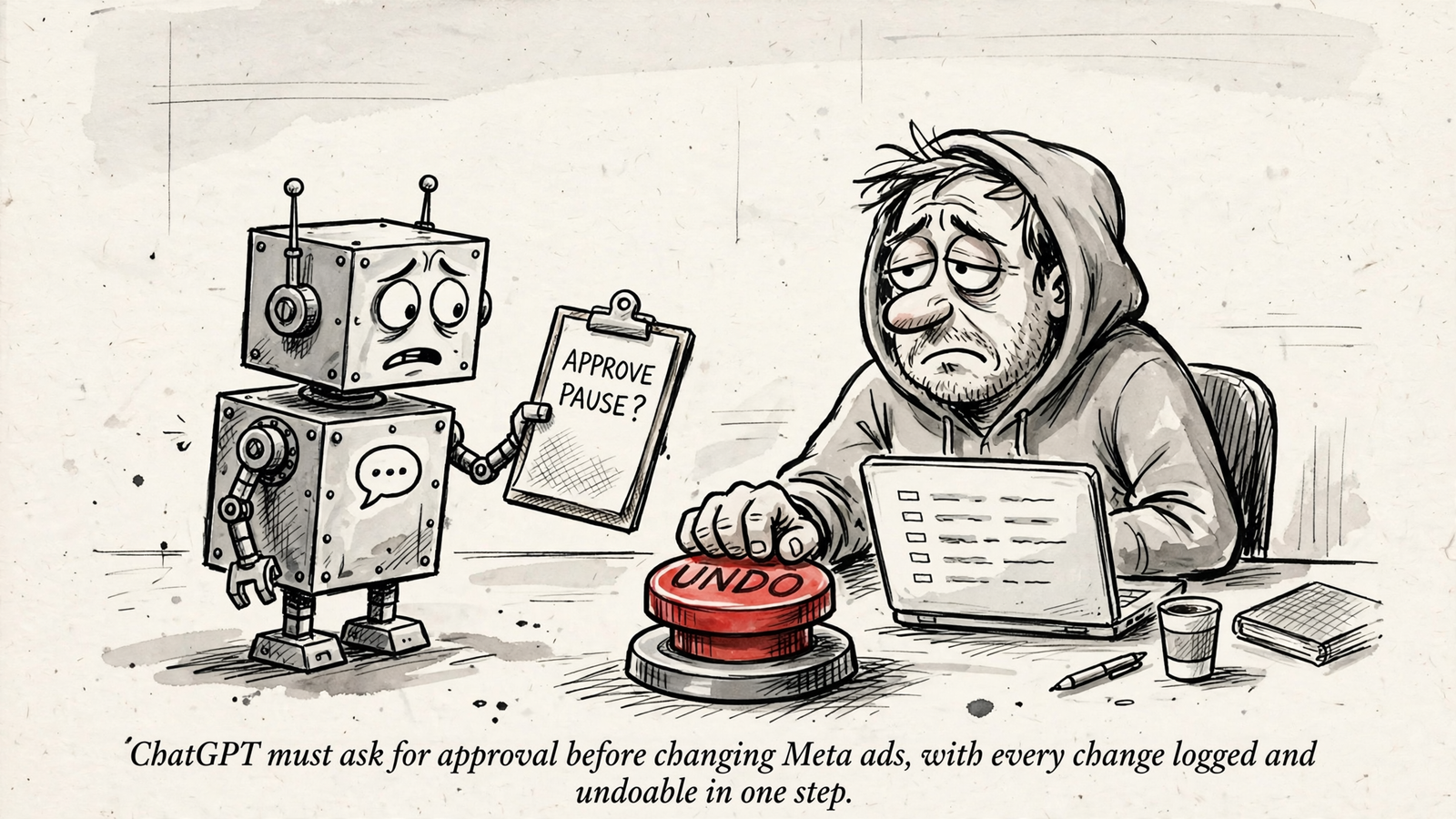
Through groas, every change is logged with its reason and can be undone in one step. Autopilot is a separate choice. Leave it off while you establish that reads, approvals, and reversal behave as expected.
Roll out changes slowly enough to inspect them
8. Stage access and test the change log
Use this sequence rather than switching straight from a successful read to broad editing:
- Days 1–3: stay read-only. Compare ChatGPT’s answers with Ads Manager using matching reporting periods.
- Days 4–7: request drafts only. Use
Do not executein each request and review the proposed changes. - After those checks: allow limited, approved edits. Start with one pause, then consider capped budget changes.
Expected result: you can explain what ChatGPT reads, what it proposes, and what it actually executes.
Common mistake: assuming that a guardrail described for Meta’s own connector also controls groas. Check the permissions on the connection you are using. Do not confuse a prompt instruction with an enforced account restriction.
After the first approved edit, inspect the log. An illustrative entry looks like this:
Budget $50 -> $35
Reason: CPA $112 after $240 spend
Approved by you, 14:32
The point is not the formatting. It is being able to identify the change and its reason, then restore the prior state if needed.
Treat approval, logging, and undo as part of the workflow, not cleanup afterward. If you cannot verify the edit, do not widen access.
Read live data without pretending it is final
Live access does not make recent attribution final. Treat the last 48 hours as provisional while Meta processes results. Use the 7- to 14-day views in these prompts to investigate fatigue and ROAS rather than making the whole decision from this morning’s CPA.
ChatGPT also does not take creative judgment off your plate. A frequency of 4.1 and a CTR decline of 38% give you something concrete to inspect. They do not, by themselves, prove which hook should replace the current one. Bring the competitor examples into the review, then make the call.
Keep attribution settings consistent when comparing answers with Ads Manager. The connection does not remove attribution choices; it makes the data easier to question.
Questions before giving ChatGPT write access
Do I still need CSV exports?
Not for the live reporting workflow above. Ask for the account, period, and breakdown you need through the connection instead of uploading a fresh file whenever the question changes.
Why use groas rather than an account-only connector?
I want the delivery numbers and the surrounding market in the same conversation. groas adds competitor ads, funnels, landing pages, and Reddit context to the account workflow. That gives the investigation somewhere useful to go after “CPA rose.”
What does groas cost?
groas Unlimited is $19 a month flat for unlimited teammates, ad accounts, and websites. For this tutorial, the important distinction is between having a connection and verifying that it works. Do the read and reversal checks before expanding what you let it change.
Verify it worked, then pause one proven loser
9. Check the numbers, execute one edit, and undo it
Run these checks in order:
-
Compare a read. Ask the question below, then open the same account and date in Ads Manager. Compare spend and results.
What did my highest-spend active ad spend yesterday? Show the account, ad name, date, spend, and results. -
Check the diagnosis. Replace the ad name and request the evidence, not just a conclusion.
Why is CPA high on [ad name]? Check frequency, CTR change, and placement. Show the delivery signals supporting your answer. Do not change anything. -
Test one reversible action. Use Step 7 to review and approve one pause. Confirm the ad’s status in Ads Manager, inspect the change-log entry, then undo it once and confirm the reversal.
Expected result: the reported numbers match the selected reporting view, the pause appears in Ads Manager, and undo restores the prior state.
Common mistake: treating a confident explanation as proof that the connection works. The proof is the read, the executed change, and the reversal.
First change once those checks pass: pause one proven loser using the reviewed-list workflow in Step 7. One ad, an explicit approval, and a reason in the log. That is the useful replacement for the CSV ritual: not another answer to paste somewhere, but an action you can inspect and undo.


