

 LinkedIn

Your SEO dashboard shows a page losing clicks. Connect Search Console and GA4 to ChatGPT or Claude, and the same conversation can investigate the drop and draft the fix.
By the end of this setup, you will have a connected assistant and four reusable prompts: find queries at positions 5–15, diagnose falling pages, measure tracked AI referrals, and turn an audit into a ranked fix list. Start with reporting. Keep publishing off until you verify the numbers.
I use groas because one connection gives the assistant access to Search Console, GA4, your website and your ads. It can move from analysis to site changes, with every change logged and undoable. A report that still leaves the implementation in your lap only finishes half the job.
Before starting: accounts, access and one property pair
Have these ready:
- A groas account. groas Unlimited costs $19 a month flat for the whole team, with unlimited teammates, ad accounts and websites, and no cut of ad spend.
- A Google account with access to both properties. For GA4, Viewer is enough for reporting.
- ChatGPT or Claude. Plan and workspace permissions affect connector access and whether tools can make changes.
- The exact Search Console and GA4 properties you report on. Note the names before connecting anything.
Use a hosted connector for this workflow. Google’s experimental GA4 MCP server runs locally and does not work in ChatGPT out of the box. The point here is to get a working connection, not acquire a second job maintaining one.
Connect Claude or ChatGPT to groas
Choose one setup path. If you have both assistants, I would start with Claude for the quicker connection check. Connect first; test reporting before testing edits.
Claude: add the custom connector
-
Open
Customize → Connectors. Expected: a+ Addbutton. Mistake: looking underSettings → Integrationsinstead of the connector menu. -
Select
+ Add → Add custom connector. Name itgroasand paste the endpoint below, following the Claude setup guide. Expected: Claude detects OAuth sign-in options. Mistake: pasting the groas homepage instead of the MCP endpoint.https://mcp.groas.ai/mcp -
Leave the detected sign-in options unchanged, then select
Add → Connect. Sign in with Google. Expected: the authorization flow opens. Mistake: using a Google account without access to the properties you need. -
On Team or Enterprise, check organization access if groas is missing. An Owner adds it through
Organization settings → Connectors → Add → Custom → Web. Expected: teammates can select groas. Mistake: treating an organization permission problem as a failed connection. On Free, the custom-connector limit also matters.
ChatGPT: add the same endpoint
-
Open
chatgpt.com/plugins, select+ → Add custom MCP server, and name itgroas. Paste the endpoint below underConnection, following the ChatGPT setup guide. Expected: a custom-server configuration screen. Mistake: adding the connection in a workspace other than the one you intend to use.https://mcp.groas.ai/mcp -
Set
AuthenticationtoOAuthand review the risk notice. Expected: a sign-in flow rather than an API-key field. Mistake: looking for somewhere to paste an API key into this OAuth setup. -
Select
Create as a plugin, review the tools, install, then sign in. Expected: groas tools become available in the chat. Mistake: installing in one workspace and testing in another. -
Check your plan’s read/write permissions against the setup guide. Expected: you know whether this connection can report only or also apply changes. Mistake: assuming that successful reporting proves publishing is available. Plan restrictions can differ between the two.
Finish either setup: select the right properties
Authorize the properties inside groas. Select the exact Search Console URL-prefix or domain property and the exact GA4 property, using an account with access to both.
Pick the property you report on every week, not the oldest one in the account. Expected: the assistant identifies the intended site and properties. Mistake: accepting a plausible answer from the wrong property. Confidently reporting on a site nobody manages is still reporting on the wrong site.
Run four prompts, in this order
Replace every bracketed placeholder before sending a prompt. Use explicit properties and closed date windows rather than “our site” and “last month.” Search Console data runs a few days behind, so check the latest available date before interpreting a drop.
Ask for the table first and recommendations second. Otherwise, the assistant can summarize whichever rows it happened to retrieve and call that an analysis.
1. Find striking-distance queries
A striking-distance query sits around positions 5–15 with meaningful impressions, such as more than 100 over 90 days. Look for pages that already satisfy the intent but fail to make that relevance clear in the title or heading.
Send:
Using my Search Console property [property name], list queries in the closed
90 days ending 2 days ago where average position is between 5 and 15 and
impressions are above 100.

For each query show: top page URL, impressions, clicks, CTR and average position.
Inspect the page and state whether its title or H1 contains the query.
If you cannot inspect it, mark those fields as unverified.

Sort by impressions divided by position. State the date range and any row limits.
Do not recommend changes yet.
Expected: a table ordered by the requested opportunity score, with title and H1 checks separated from Search Console metrics. Look for high impressions, low CTR and a relevant page whose title misses the query.
Mistake: sorting by position alone. A query at position 15 with 40 impressions is a distraction beside one at position 9 with 900 impressions. Neither score proves a title change will work; it gives you a sensible inspection order.
If the connection returns only 30 days, treat that as a preview rather than the requested analysis. Use the longer window to check whether the opportunity persists beyond a one-week spike.
2. Diagnose pages losing clicks
This is the prompt I care about most. A rankings table shows where a page stands. A falling-page table shows where to investigate first.
Send:
Compare the closed 28 days ending 2 days ago against the previous closed
28 days for my Search Console property [property name].

List the 15 pages with the largest click drops. For each show:
- Clicks this period and last period
- Percentage change in clicks
- Impressions change
- Average position change
- Top 3 queries that lost clicks on that page

Group the pages by whether the pattern points toward ranking loss,
impressions loss or CTR loss. Flag mixed or inconclusive patterns.
Separate observed changes from possible explanations. Do not claim a cause yet.
State whether click totals include anonymized queries or only query-labelled rows.
Expected: a shortlist with diagnostic clues, not a confident story attached to every decline.
Use the patterns to choose the next check:
- Position worsens: investigate ranking loss.
- Impressions fall while position stays stable: investigate the impressions decline rather than immediately rewriting the title.
- Position and impressions stay stable while clicks fall: investigate CTR. A competing title or AI answer may be involved, but this table does not prove either.
Mistake: comparing an incomplete current period with a complete previous one. Check both date windows before touching a page. Also distinguish page totals from query-level totals: anonymized queries mean they will not necessarily reconcile.
The practical rule is simple: diagnose the pattern before prescribing the rewrite.
3. Measure tracked referrals from AI assistants
Use GA4 for visits, not Search Console. Ask for the AI Assistant channel, then inspect sources and landing pages underneath it. A channel total alone hides which assistant sends the traffic.
Send:
In GA4 property [property name], for the closed calendar month of [month],
show total sessions and sessions in the AI Assistant Default Channel Group.
Calculate the AI Assistant share of total sessions.

Then split AI Assistant sessions by source. Show sessions, engaged sessions,
engagement rate and key events for the top 10 sources, with their top landing pages.
Compare against the previous month.

Exclude sources matching kagi.com, search.brave.com or huggingface.co,
because those hosts mix search and chat traffic. State the exclusions.
If the AI Assistant channel is unavailable, say so rather than returning zero.
Expected: the share of sessions attributed to the channel, followed by the sources and landing pages behind it. The GA4 referral breakdown explains the channel and source distinctions.
Mistake: treating attributed visits as a complete count of AI influence. ChatGPT adds utm_source=chatgpt.com to referral URLs, but copied tagged links can inflate attribution. Untagged visits without a referrer can land in Direct and cannot be recovered from that record.
Treat this as tracked attribution, not an exact total. If you filter sources directly, use exact hostnames such as chatgpt.com, perplexity.ai, gemini.google.com and claude.ai. A broad pattern like .*gpt.* also catches gptzero.me.
Before celebrating a spike, inspect its landing pages. One linked paragraph can explain the whole thing.
4. Turn audit findings into three draft fixes
Paste your audit findings into the same conversation. Make the assistant connect them to the pages and queries it has already inspected.
I used to tell clients to fix all technical errors first. I was wrong. The error on a page that lost 400 clicks deserves a closer look than warning number 47 on an export.
Send:
Here are my SEO audit findings for [site]:
[paste findings or page URL]

Using the Search Console results from Prompts 1 and 2, explain each finding
in plain English: what breaks for the visitor, and which falling page or
striking-distance query it affects.

Rank the fixes by expected click impact relative to effort. Label estimates
and explain uncertainty; do not invent a click forecast.

Show a table with 4 columns: fix, pages affected, why it matters, effort.
Then propose copy or code for only the top 3.
Draft only. Do not publish.
Expected: a ranked table followed by three drafts, not forty-seven warnings rewritten in friendlier language.
Mistake: letting the assistant rewrite before it ranks. That invites it to work on the easiest page rather than the most valuable one.
A read-only connector can help analyze findings and draft replacement copy. It cannot apply that copy to your site. That last step is where a reporting connection stops and groas goes further.
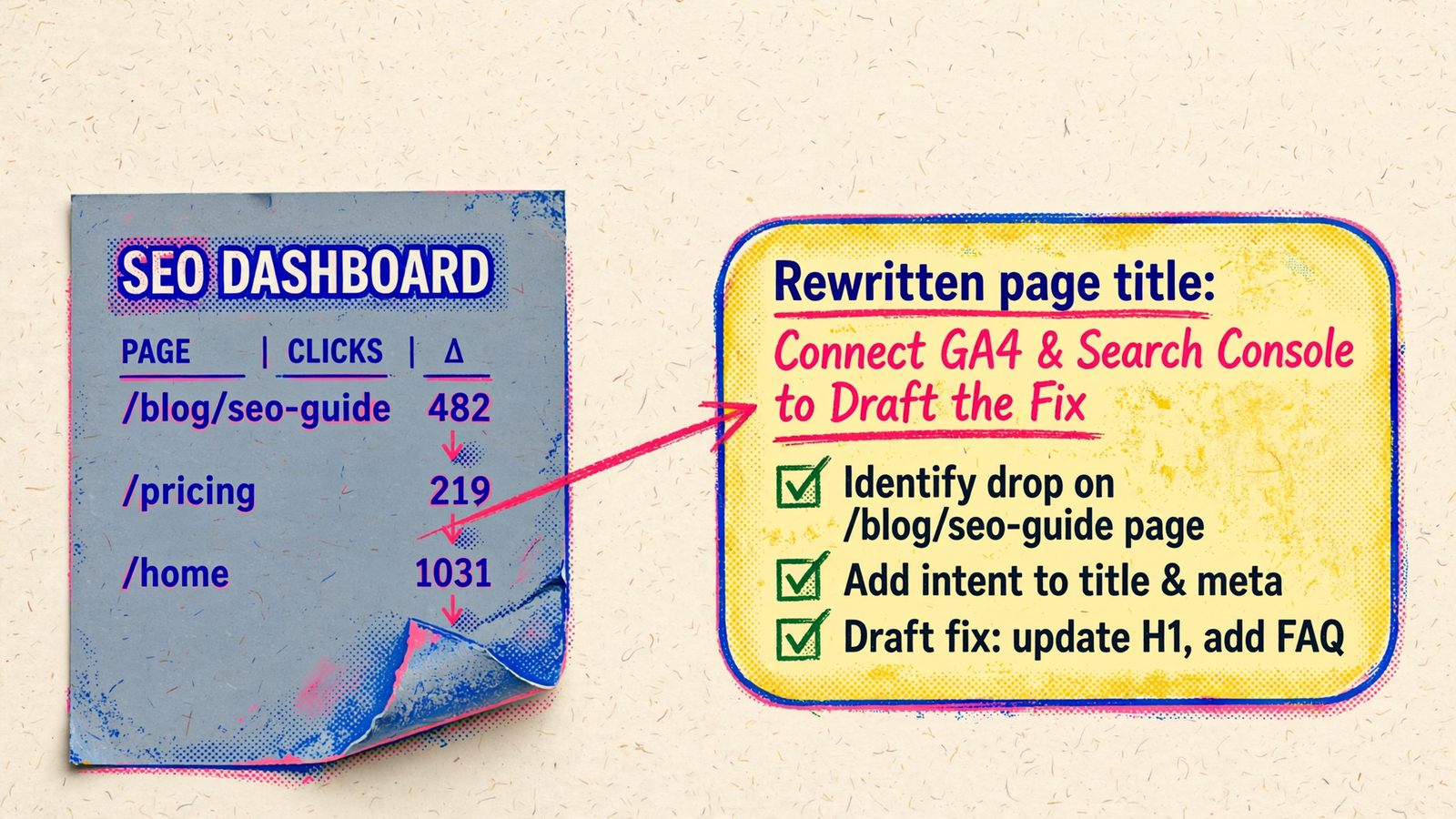
Move from a draft to a controlled site change
Through groas, the chat that finds a falling page can draft its replacement title, update a heading, publish a supporting section or address the audit finding on the site itself. It can also query competitor ads and funnels, Reddit language, AI answers, and SEO data from Semrush and Ahrefs.
For this workflow, keep the scope narrow:
- Send
draft only, do not publish. Expected: proposed edits for review. Mistake: granting broad publishing permission before checking the analysis. - Approve a specific change on a named page. Expected: the implementation matches the reviewed draft. Mistake: approving a general instruction to “improve SEO.”
- Inspect the change log. Expected: the change and its reason are recorded. Mistake: assuming a successful tool response proves the intended page changed correctly.
Every change is logged with its reason and can be undone in one step. Leave autopilot off while testing this workflow. If you later enable it, set its rules first.
Already running ads in the same chat? The Google Ads, Meta and GA4 setup uses the same connection. Keep this first test focused on one organic-search change before widening the scope.
Free options: useful tests, incomplete workflows
A free connector can prove that asking questions of your data is useful. It may not support the full workflow above.
- Windsor’s free tier: one user, one data source and one account, with the last 30 days of data, after its trial. That window cannot supply the 90-day analysis or two complete 28-day periods requested here.
- CSV exports: free and useful for a manual check, but the 1,000-row export limit can omit the long tail. In one test property, the top 1,000 queries held 65% of clicks but only 42.6% of impressions.
- groas Unlimited: $19 a month for unlimited teammates, accounts and sites, with the site-editing workflow and change log alongside reporting.
Use free access to test the idea; use groas to carry the analysis through to implementation. Check the available history before running the prompts, not after interpreting an incomplete table.
Check these limits before trusting an explanation
A connector does not remove the limits of its source data. groas inherits them too.
- Search Console lags. Data runs two to three days behind. Check the latest available date and shift the window back if needed.
- Query rows are incomplete. Anonymized queries do not appear, and API row limits can constrain large requests. Ask whether the assistant retrieved all available rows or only a subset.
- History is finite. Search Console retention stops at 16 months. A connection does not manufacture older data.
- GA4 has collection gaps. Visitors declining cookies in basic consent mode send nothing. Do not interpret missing measurement as proof of no visits.
- Attribution can be messy. Expect
Unassignedwhen UTMs miss channel rules and(not set)whensession_startis missing.
Ask for the denominator, date window and retrieval limits before acting on a number. The assistant should distinguish what the data shows from what it thinks might explain it. That distinction is the difference between an investigation and a plausible paragraph.
Verify the connection, then change one title
Finish with one reporting check and one controlled edit.
-
Request known totals. Send:
For Search Console property [property name], show total clicks and impressions
for the closed 28 days ending 2 days ago, plus the latest date available.
State all filters and whether these are property totals or sums of query rows.
Expected: totals that match Search Console for the same property, dates and filters. Mistake: comparing property totals with a sum of visible query rows.
-
Run Prompt 1 with its 90-day window. Expected: the requested history, or an explicit explanation of what is unavailable. Mistake: accepting a 30-day response as a 90-day analysis. Check the property, source and available history before proceeding.
-
Draft one title. Pick the highest-impression query whose intent the page already satisfies. Ask for a title containing the query in plain words, with
draft only. Expected: one relevant title to review. Mistake: changing the title to chase a query the page does not answer. -
Publish that single approved title and monitor it. Wait for recrawl, then watch CTR for one to two weeks. Ranking moves take several weeks. Expected: a focused observation window. Mistake: rewriting the title, H1 and page body together, then pretending to know which change mattered.
Keep Search Console as the source of truth. Let the chat investigate the drop and draft what goes live next. Once the connection passes verification, the first change is one title—not the whole site.


