
 LinkedIn

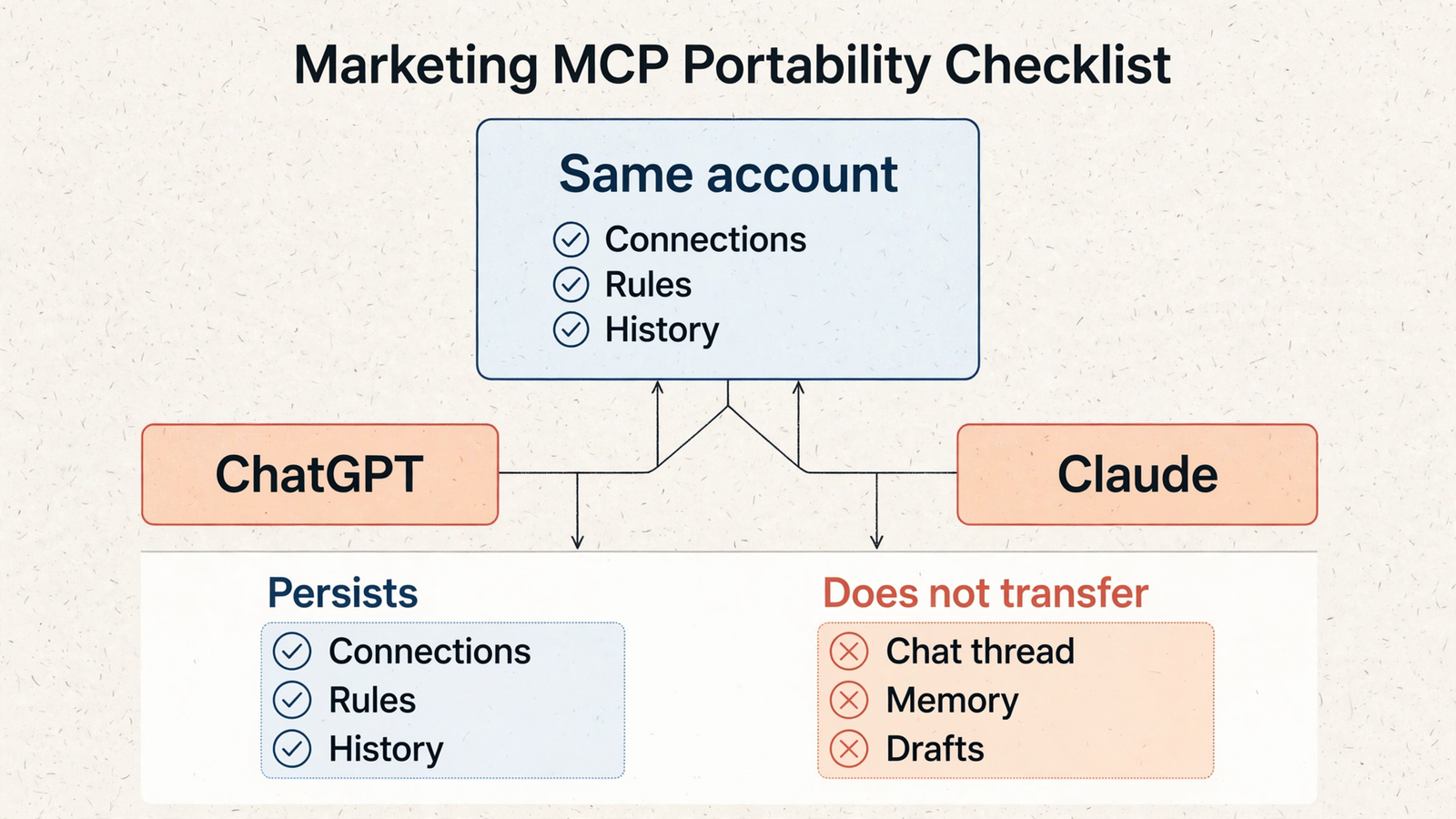
If switching from ChatGPT to Claude means reconnecting my ad accounts and rebuilding my budget rules, I don’t call the tool portable. Before I buy, I run the same read-only job in both assistants and look for the setup I already paid to build. One account, one fixed date range, one brief saved outside either chat. I’m not grading the prose. I’m checking whether the connections, rules, and change history are still there when I start from a blank chat in a different assistant. A remote MCP server can serve multiple clients without carrying their chat state. That’s the split I want to see in the product, not just on an architecture diagram. Allow about an hour, much of it for connector sign-ins, and score each check pass, fail, or unverified. Unverified is not a pass.
Before you start: Define one job both assistants can run
- Choose one connected ad account and one fixed reporting window. Use a Google Ads, Meta, or Bing account and write down the exact start and end dates. The last 14 complete days will do. Don’t compare “last month” in one assistant with “last 30 days” in the other.
- Save the brief outside both assistants. Put the account ID, dates, and requested output in a plain document you control. Leave out passwords, API keys, and customer data the task doesn’t need. A brief you can retrieve only from a ChatGPT thread isn’t portable.
- Set the pass criteria before opening either chat: same account and dates, spend and conversions that match within rounding, named data sources, and no changes. Matching figures don’t settle the question if you can’t tell which account or date range produced them.
- Confirm which plans and surfaces support the connection. Claude’s custom remote MCP connectors are available across its plans, with one custom connector on Free. On Team and Enterprise, an owner adds the connector for the organization before members connect individually.
- Record the permission level next to the plan and surface. OpenAI documents full MCP support on the web for Business and Enterprise/Edu, and read/fetch access for Pro. A successful read shows the reporting job works on that setup. It tells you nothing about whether both assistants can make the same changes.
In ChatGPT: Capture a baseline you can check
- Run the saved brief: “For the account ID and dates in this brief, confirm the account and reporting window you used, report spend and conversions, and list the data sources. Make no changes.” Leave out “and tell me what you’d change.” This is a reading test, not a strategy session.
- Record the account ID and dates the assistant actually used. Check them against the brief before recording the numbers. If one login covers several accounts, a convincing report can still be for the wrong one. That’s a finding, not a footnote.
- Save the exact prompt and full answer, including the named sources. Keep the answer separate from the brief you’ll paste into Claude. One is evidence from the first run. The other is the input you’re holding constant.
- Write down where each rule lives. Inventory budget caps, approval requirements, paused campaigns, negative-keyword lists, and instructions about what not to touch. Distinguish a rule you can open in the tool from one you wrote only in ChatGPT. If you can’t locate it now, don’t wait until the second run to guess where it came from.
- Stop and mark the run as failed if it changes a bid, budget, or campaign status. “Make no changes” is part of the test, not a preference the tool gets to override when it spots an opportunity.
In Claude: Repeat the job without rebuilding the setup
- Connect Claude to the same tool using the supported method. Sign in where required, but don’t rebuild the tool’s ad account connections. Authorizing a second assistant is part of switching. Reconnecting the underlying ad accounts is the work you’re testing whether you can avoid.
- Paste the saved brief word for word into a fresh chat. Don’t paste ChatGPT’s answer or add an explanation of which account you meant. If the brief turns out to be ambiguous, fix it in the outside document and rerun both sides with the same wording.
- Compare account IDs, dates, spend, conversions, and named sources against the baseline. Small rounding differences are fine. A different account or window is a fail. If Claude doesn’t name its source, mark that part unverified even if the totals match.
- Find the connected accounts, rules, and change history before you re-enter anything. Open the place the vendor says those records live. A connector showing up in Claude proves it’s attached. It doesn’t prove the setup you spent time building is still available.
- Check what you find against your inventory. With groas, you connect the ad accounts once; verify that Claude can work with the same accounts and that you can find the existing rules and history without recreating them. If a vendor says a record persists but can’t show you where, mark it unverified.
- Ask Claude which rules it found in the connected tool and which came from the brief. Check the answer against the settings. A cap pasted into a prompt can sound exactly like a cap stored in the tool. Only one was there before you asked, and the reply alone doesn’t tell you which one you’re looking at.
- Re-supply assistant-specific context only after you score what persisted. Don’t count on ChatGPT’s conversation history following you into Claude. Importing memory is separate from moving threads. Record any instructions, project context, or scheduled tasks you recreate by hand. That may be necessary handoff work, but it doesn’t count as infrastructure passing the test.
Before write access: Check approvals, undo, and revocation
- Verify approval requirements and budget boundaries in each assistant. Ask what it must confirm before changing a bid, budget, or campaign status, then check the actual settings. Claude’s remote connector documentation describes what connectors can reach; it doesn’t establish which approvals your setup requires. A gate you checked in ChatGPT isn’t one you checked in Claude.
- Confirm what the underlying connector can do. Google’s official Google Ads MCP server is read-only: it can’t change bids, pause campaigns, or create assets. The Meta Ads MCP setup described here can create and edit campaigns, with new ads starting paused. Write down which setup you actually have. Asking for a read-only report isn’t the same as checking that the connection is read-only.
- Open the change log and check the last three entries. Look for who or what made each change, when it happened, and how you’d reverse it. Record where you found the log. If getting to it depends on asking the assistant that made the change, note that before granting write access.
- Check where undo takes effect without making a live change during this test. Undoing a draft in chat isn’t the same as reversing a change in the ad account. If you can see an undo control but can’t verify what it reverses, mark it unverified. Don’t turn a read-only test into a live campaign edit to fill in a box.
- Disconnect one assistant and check both sides. Confirm the disconnected assistant can no longer fetch a fresh report through the tool, then check that the account connection, rules, and history are still there for the other assistant. An old answer in a chat isn’t evidence that the disconnected assistant still has live access.
- Locate the second revocation route. Claude documents disconnecting in Claude settings or in the third-party service’s security settings. Test both routes if you can, and record which one cuts off the assistant without removing the underlying ad account connection.
- Keep both assistants read-only if you can’t verify approvals, history, or revocation. If you’re about to grant write access for the first time, run the four marketing MCP safety tests before Claude touches your ad budget as a separate pass.
Score the setup, not the assistant
- Keep the evidence next to the verdict. Record the test date, assistant plan, surface, and connection method for each tool you test. “Works in Claude” won’t help the next person rerun the test. “Same account and dates, sources not named” tells them exactly what still needs checking.
- Separate the infrastructure fee, assistant subscription, and setup work. Write all three down, even if one is zero. Keep one-time work out of the monthly total. Note which setup work you’d have to repeat on the next switch instead of burying it in the subscription comparison.
- Use groas Unlimited’s flat $19 monthly team price as the reference for pricing the infrastructure separately. It includes unlimited teammates, ad accounts, and websites, and switching assistants doesn’t change that fee. Conversations, memory, and files stay with the assistant; they aren’t part of the setup groas carries across.
- Reject a portability claim you can verify only by pasting an export into a new chat. Ask the vendor to show where connections, rules, and history live and what happens when a second assistant connects. An export may help you move. It doesn’t show that the new assistant can use the existing setup.
| Check | Pass | Fail | Unverified |
|---|---|---|---|
| Same reporting job | Same account ID and dates; sources named; totals match within rounding | Wrong account or dates, or totals differ beyond rounding | Account, dates, or sources aren’t named |
| Connections, rules, and history | Existing setup is available after the switch, without rebuilding or re-entry | Connections or rules have to be rebuilt | Vendor says the records persist but can’t show where |
| Assistant-specific context | The saved brief is enough to run the job | The job still depends on the old chat or its memory | You can’t tell which context the tool used |
| Approvals and budget limits | Required controls confirmed in each setup | A required control is missing | Settings can’t be verified on the tested plan or surface |
| History and undo | Log identifies who changed what and when; reversal reaches the account | Undo only edits a chat draft, or the change can’t be reversed from the tool | Log or reversal can’t be verified |
| Disconnect | One assistant loses access; account connection, rules, and history stay put | Old access remains, or removing it takes the setup with it | Revocation route hasn’t been verified |
Last check: Find the rules and history without the old chat
- If you’re moving to Claude, set up marketing MCP so you can leave Claude later. Check that the accounts, rules, and logs live outside the assistant before you start copying custom instructions. Otherwise you’ve tested a move into Claude, not whether you can move out again.
- Keep the handoff in the same outside document as the brief: account IDs, fixed reporting dates, budget boundaries, approval requirements, log location, and how to disconnect each assistant. The document should tell the next person where to find the rules. It shouldn’t be the only place the rules exist.
- Find the rules and change history without opening the old chat before you grant write access. This is the check I see teams skip: the connector lights up, the numbers match, and the log starts to look like paperwork. The cost shows up when the plan changes or the person who set it up leaves. You’re rebuilding rules nobody wrote down, and if you never verified revocation, the old assistant may still be able to spend under rules nobody remembers setting.