

 LinkedIn

Connecting ChatGPT to an ad account does not hand it the keys to everything. It gives it a set of tools, bounded by what the server exposes and the access you grant. Most advertisers I talk to still picture either magic that runs everything while they sleep or a security hole that leaks everything on contact. Both stories skip the useful questions: what can it call, who authorised it, and can you see and undo what it changed?
Myth 1: “ChatGPT sees everything in your accounts”
People believe this because “connected” sounds like an open vault. You click connect, ChatGPT gets a badge that says Google Ads, and the mental image is a dashboard with every campaign, keyword and dollar already in view.
That is not how the connection works. An MCP server answers tools/list with the tools available to that caller. The list can vary with the authorisation presented. The MCP tools specification describes that exchange; it does not turn a connection into an all-seeing dashboard. My plain-language explanation of what an MCP server does is considerably narrower than the sales-deck version.
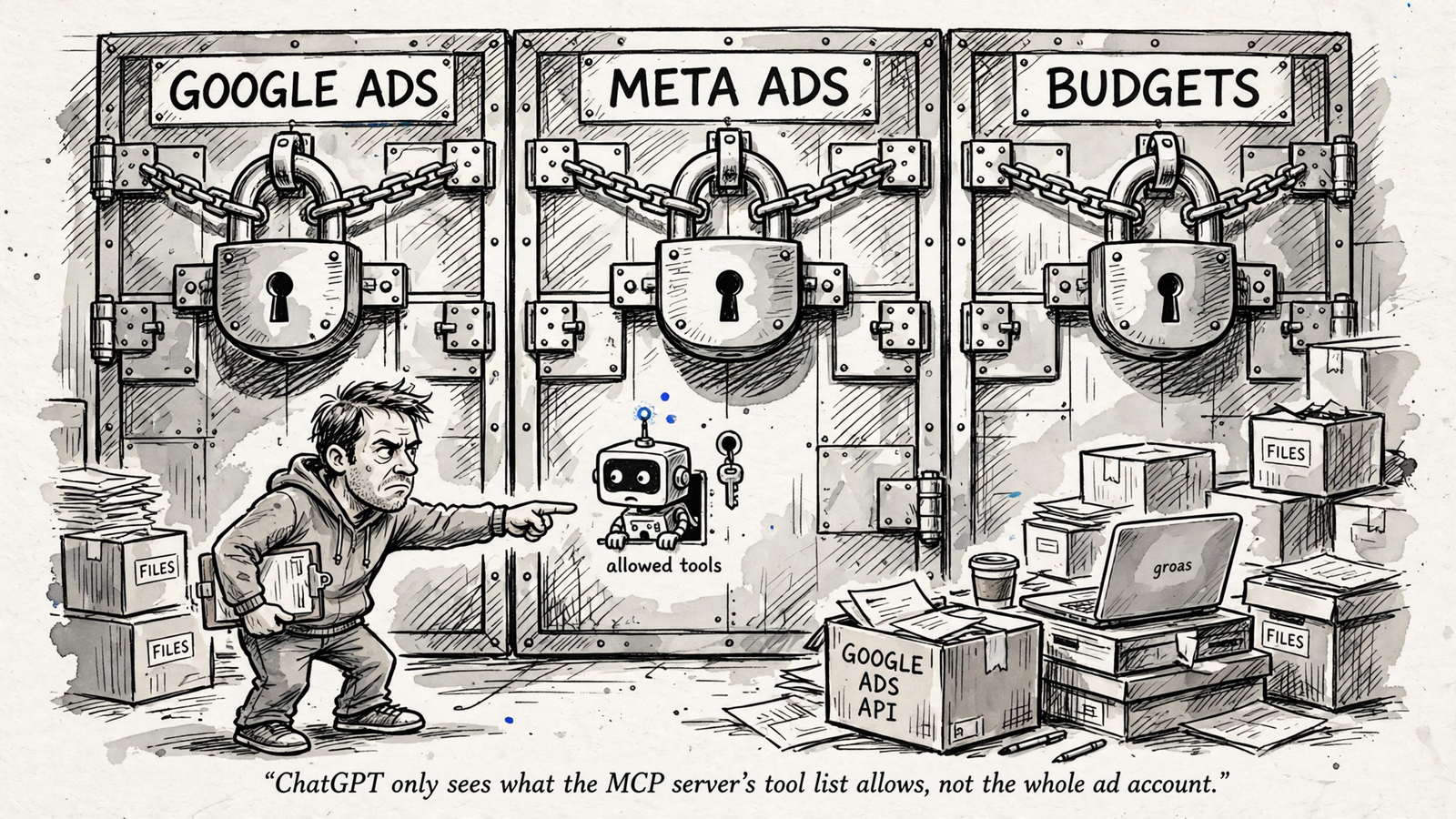
Google’s own MCP tools execute under the authenticated caller’s OAuth identity, and list_accessible_customers returns customer IDs directly accessible to that login. If the login is invited to your main account but not a client account or a newly created account, a more confident prompt will not supply the missing access.
There are two boundaries here: what the server exposes and what the credentials permit. Neither means ChatGPT has already fetched every number behind the connection. It needs a tool call to return that data.
Ask for the tool list and the accounts the connection can reach. Compare the answer with what you intended to connect. That tells you more than a promise about “full access”, and it gives you something concrete to fix when an account is missing.
Myth 2: “It changes things on its own”
This one survives because demo videos are cut tight. Someone types “fix my ads”, the screen blurs for two seconds, and a budget moves. Nothing in that clip shows the permission screen, the confirmation step or the autopilot the person filming already switched on elsewhere.
A chat connection is not the same thing as an autonomous campaign manager. ChatGPT’s confirmation defaults matter, but so do the tool’s configuration and the approvals already granted. I would not treat “it usually asks” as a spending control. I want to see how this connection handles this action.
I used to assume confirmations would make every change slow. The useful version is not endless clicking. It is seeing the proposed change before it lands, particularly when the thing being changed is a $20k-a-month budget.

The autopilot in groas, for example, is off until you switch it on. Every change is logged with its reason, and any change can be undone in one step. Switching on that autopilot is separate from adding the server to ChatGPT.
My check is simple: ask it to propose a campaign pause or bid change without executing it. Look for the exact action, the approval it needs and the record it would leave. Do not move money just to discover whether a confirmation screen exists.
If a change happens without the approval you expected, stop and check what was enabled, who approved it and where that approval is recorded. The log matters more than the model name.
Myth 3: “It is just another reporting tool”
People believe this because Google’s own MCP server is reporting-only by design. The server comparison from Markifact lists three tools: search, get_resource_metadata and list_accessible_customers. Google’s documentation says its server cannot create, modify, pause or enable campaigns, ad groups, ads, budgets or bids.
That describes one server, not the limit of MCP.
I used to tell clients that read-only was safer. I was wrong about it being enough. A reporting server can tell you CPA rose, but it leaves you to investigate and make any change yourself. At 11pm, that distinction becomes less philosophical.
Read-only is a permission boundary, not a definition of the protocol. If reporting is all you want, fine. If you want ChatGPT to carry out account work, check for the relevant write tools and their controls before you connect. A report with a chat box is still a report.
Myth 4: “Every MCP server is the same”
Same plug does not mean same car. The comparison of Google’s official server with a hosted connector illustrates the basic difference: one stays read-only; another exposes account-changing tools. The protocol is shared. The product is not.
The distinction I care about is less photogenic than a demo:
- Which tools read data, and which change it?
- What approval does a write require?
- Does the server log the change and its reason?
- Can you undo it?
A long tool list answers only the first part of the buying decision. Fifty ways to change an account are not reassuring if nobody can explain which one ran yesterday.
In groas, reads and writes are labelled separately, and every change is logged with its reason and an undo step. That is the standard I test against: useful execution with a record I can inspect, rather than a successful-looking chat message.
Ask for the tool list and the write policy together. If a server cannot show both, I treat it as a demo, not infrastructure. The label MCP-compatible does not answer the operational questions for you.
Myth 5: “You need a developer to set it up”
This one is half true, which is why it sticks. The official Google server involves a developer setup: Python, a Google Cloud project with the Ads API enabled, OAuth credentials and a developer token. The setup comparison makes clear why someone encountering that route first might close the tab.
The mistake is assuming every connection works that way. A hosted connector replaces the self-hosted setup with a sign-in flow. The groas path is the same idea: connect your accounts once, add the server link in ChatGPT and sign in. No code, about a minute, read-only until you say otherwise.
That does not remove permissions from the equation. If the tools you expect do not appear, check the workspace permissions, who holds admin access and which tools the server exposes before blaming the prompt. A longer prompt is not an admin role.
Separate installing the connection from checking what it can do. The first can be quick. The second deserves your attention.
Five checks before you trust the connection
I use these checks in order because a server cannot fix a missing login, and a prompt cannot invent a missing write tool. You do not need to make a live change to inspect the first four. If a check fails, stop there.
-
Ask for the tools. Say: “List the tools you can call right now.” Read the names and descriptions. If you see only read and fetch operations, you have a reporting connection. That may be exactly what you wanted. If you expected execution, establish whether the missing piece is the server or your access before changing anything.
-
Ask for the accounts. Say: “List the ad accounts this login can reach.” Compare the answer with the accounts you actually run. If one is missing, check the login’s access before rewriting the prompt. I have fixed this more often by re-inviting the login than by asking the model more forcefully.
-
Separate reads from writes. Ask: “Which of these tools change something, and what approval do they require?” Look for plain descriptions, including on pause and budget tools. Then ask: “Show me a change you would make today, but do not execute it.” A proposal lets you inspect the intended action without using a live budget as a permissions experiment. Tool labels help you understand the workflow; they are not a substitute for checking the actual approval settings.

-
Check the data setting. Open Settings and check Improve the model for everyone, or confirm the data policy for your Business, Enterprise or Edu workspace. Do not assume a connected app changes the policy attached to your plan. This is the least interesting setting on the screen until it concerns a client’s account data.
-
Check the log and undo path. For an existing change, ask: “Show me what changed, why, when, the parameters sent and how I undo it.” If there is no change history yet, inspect how the server records changes before authorising one. A reassuring sentence from the assistant is not the same as a record you can retrieve later.
The OWASP MCP security cheat sheet advises logging invocations with parameters and timestamps. It also describes risks that a tidy tool list alone does not settle:
- The Confused Deputy: a server acts using its own broad privileges.
- Tool poisoning: tool descriptions carry hidden instructions.
- The rug-pull: a server changes its tools after approval.
That last one is why I do not stop at the initial connection screen. If what a server does changes after approval, I want a record, not a shrug. Logs do not make every server safe, but a missing log makes an account-changing server much harder to trust.
When those checks line up, you know what you bought. The tool list describes the available actions. The account list shows the access boundary. The approval settings govern execution. The data controls govern model-training use. The log gives you something to examine next month when somebody asks why a budget moved.
For groas, the operating rule is explicit: changes are logged with their reasons and can be undone in one step; the autopilot stays off until you switch it on. Check the controls, not how confidently the assistant describes them.
Myth 6: “Your data trains the model”
Of the six, this is the hardest to kill because the honest answer depends on the plan and settings. “Yes, always” is wrong. So is “No, it is MCP.”
People have a reason to worry. Consumer AI products can use conversations to improve models, so connecting an ad account feels like sending every number into the same bucket. But that mixes up three things: the chat, the tool server and the model provider’s data policy.
OpenAI explains its consumer controls in how your data is used to improve model performance. On Free, Plus and Pro, check Improve the model for everyone and turn it off if you do not want conversations used for training. Business, Enterprise, Edu and API inputs and outputs are not used to improve models by default.
The plan and settings matter; the acronym does not settle it. Before debating the server, establish which workspace is receiving the data.
There is another easy shortcut to avoid. OpenAI publishes a specific policy for connected Google app data, including exceptions involving feedback, pasted or uploaded data, and data included in responses. I would not treat that as a blanket promise covering every MCP tool response. A policy for one data flow is not permission to stop reading the policy for another.
The server is a separate part of the check. What does it keep from tool calls? Where can you inspect those records? If the vendor cannot explain what it logs, I skip it. “We use MCP” is an answer about the connection, not an answer about retention.
My practical rule is to run client spend in a Business workspace, turn off Improve the model for everyone wherever that control applies, and keep the change log somewhere I can read it. None of that requires believing the model is magic. None requires treating every connection as a breach waiting to happen.
The groas ChatGPT connection takes about a minute, needs no code and costs $19 a month flat for the whole team. But the minute spent connecting is not the test. The five checks are.
That is the myth I keep coming back to: “connected” does not tell you what happens to your data, any more than it tells you which budget can change. Replace the two bad stories, magic and security hole, with a tool list, permissions, data controls and a log you can read. That is the product I am willing to trust with an account.


