
 LinkedIn

The verdict in 30 seconds
If you manage Google and Bing ads for clients, the first job of the morning is finding out which account needs you, not opening them all in order. I’d start with Claude connected to groas and keep Google Ads Editor and Microsoft Advertising Editor for the bulk changes I’ve already decided to make. I want an exception queue first. I can open an editing grid once I know what needs editing.
I used to live in Google Ads Editor. Download, check changes, post, download the next account, repeat. It felt productive because the spreadsheet was moving. The part that wore me down came before the spreadsheet: opening each account, scanning the same five numbers, deciding what mattered. In a DoubleVerify survey of 2,020 decision-makers, adoption of third-party AI bidding rose from 42% to 50%, while weekly manual optimisation fell by just 14 minutes, from 10 hours 12 minutes to 9 hours 58 minutes. Bidding got more automated. There was still plenty of work left.
That’s the work I’m scoring here: finding the account that needs attention, making a known batch of changes, investigating what I’m about to approve, and deciding what should happen when I’m not looking. The Editors win the batch. Claude + groas wins the work that tells me whether I need a batch at all.
Round 1: Find the account that needs attention
Claude + groas wins because it starts with the exceptions. Google Ads Editor can hold multiple accounts, but I still have to download account data and scan it. A full download can also replace the local copy and discard unposted changes. For one account, that workflow is manageable. Across a book of clients, it’s open, download, scan, close, repeat. The account that stopped converting gets the same slot in the rota as the one that’s running fine.
Here’s the first request I’d give Claude, with the actual accounts named:
Compare Google and Bing over the last 30 days. Flag CPA increases, missing conversions and high-spend search terms.
Before I trust the order of that queue, I want four things alongside the figures:
- Account IDs so I know which account each finding belongs to.
- Dates so I know what period each figure covers.
- Currencies so I don’t read GBP and USD as interchangeable.
- Conversion definitions so a lead-form submission doesn’t get ranked as if it were a purchase.
That isn’t paperwork for the sake of it. Microsoft’s advertising tools require both a CustomerId and an AccountId for most entity data, and performance metrics need a date range. Even with the right data pulled, ranking a GBP lead account against a USD purchase account without that context gives me a neat list I can’t act on.
A useful queue might look like this: three accounts are fine, so leave them alone. One has spend and no conversions since Tuesday. Another has a search term you’ve never seen before and CPA is up 40%. Now I know where to look. I’ve put the ready-made prompts in 7 Google and Bing Exception Reports to Ask Claude For Before Buying Another Dashboard. Report first. Edit second. Reverse that order and you’ll keep polishing accounts that didn’t need you.
Round 2: Build and post a known batch
The Editors win when I already know what needs to change. In Google Ads Editor, I download the account, retrieve recent changes, edit or import locally, check the changes, post and verify them live. The check is the point. If the identifying columns in an import don’t match the downloaded entity, I want to catch the duplicate before it goes anywhere near the live account. Microsoft’s bulk-upload workflow gives me a similar checkpoint: edit the spreadsheet offline, upload it, review the estimated adds, deletes and changes, then apply it.

Where a grid earns its keep
Rename 150 ad groups. Add location negatives across 20 campaigns. Copy a campaign structure from one account to another and check every row before posting. For that kind of construction work, I want a grid I can sort, filter, copy and paste. I also want an archive before I post. In Microsoft Advertising Editor, undo and revert stop working after posting. Once a Microsoft bulk upload has been applied, there’s no automatic cancel or revert either; the recovery route is to re-upload the saved original. Save it while it’s still the original.
Where plain English saves clicks, not decisions
With Claude + groas, I can describe a batch for Google and Bing in one conversation instead of navigating two interfaces. That saves clicks, but “add these negatives” still isn’t a scope. Which account? Which campaigns? Exact or phrase match? What happens to the terms I’m not sure about?
Microsoft’s own MCP use cases put diagnosis, reporting, cross-platform comparison and anomaly detection on the assistant side, with bulk creation and editing left to the Editor or API. I think that’s an honest split. Whether I’m handing over an import file or describing a batch in chat, I name the account IDs, campaign names and expected row count before I approve anything. A bulk edit I can’t describe is a bulk edit I shouldn’t post.
Round 3: Investigate the change before approving it
I’ve been burned enough times by negative keyword lists that I don’t post one on first sight. A term can look like waste at campaign level and turn out to be the only one feeding a profitable ad group. It can also be the name customers use for a product the client actually sells. An Editor preview shows me what I’m about to post and where it will land. It doesn’t make the case for blocking the term. Claude + groas wins this round when it can make that case with the account’s own numbers.
Explain each proposed negative keyword and its campaign destination.
For each term, I want spend, conversions, the last seven days against the prior seven, and the exact campaign and, where relevant, ad group where the block would apply. If Claude can’t show me the numbers, I don’t approve the negative. That was my rule in spreadsheets at 1 a.m. It’s still my rule when the spreadsheet is a chat window.
Check the destination before posting and the log afterward
Approval is for named changes, not a general instruction to tidy up. “Apply the negatives” is how a term meant for one campaign ends up blocking a brand term in another. Here’s the order I use:
- Read the named changes, or confirm the batch ID and row count. Check where each change will land.
- Spot-check two rows against the live account before approving the batch.
- Once the changes land, check the groas log to see what was applied and why. Match it against what I approved.
The Editors have their own version of the same problem. In one operator’s account of a Microsoft bulk rename, columns copied over Google-style produced new campaigns and ad groups in preview instead of renames. Whether it’s a grid preview or a list in chat, the warning only helps if I read it before I post.
Round 4: Decide what happens between sessions
The Editors don’t watch the account between sessions. That was fine when I checked accounts every morning by habit. It’s less fine when a campaign hits its budget cap by 9 a.m., a disapproval sits for six hours, or a term I blocked on Friday starts spending again on Monday because nobody checked the replacement campaign. Those are reasons to check what happened between sessions, not reasons to hand over every decision.
Keep a chat session separate from autopilot
In a Claude session, I ask a question and decide whether to approve a named change. With groas autopilot, groas runs under rules I set, and it stays off until I switch it on. I wouldn’t turn it on just to fix reporting. That’s like turning on cruise control to fix the fuel gauge. I can use the reports to find problems without letting the account change itself while I’m away.
Write the guardrails before switching it on
If I do enable autopilot, I write down the rules before the first change, not after the first surprise:
- Budget limits: How much can the daily budget move in each account?
- Permitted changes: Can it adjust bids within a range, pause a campaign after a set spend with zero conversions, or add negatives above a spend threshold?
- Changes I always approve: Anything touching brand terms, creating a campaign or moving budget between Google and Bing.
I’d review the rules monthly. The account I run in January isn’t necessarily the account I run in June. The agency examples of AI-assisted account management describe a useful split: daily pacing and waste checks, negatives suggested twice a week but not applied, and a plain-English summary for the client. Suggesting a change and making it are different permissions. Set them separately.
The decision card
For an operator managing Google and Bing across multiple client accounts, Claude + groas wins. It starts with the question I need answered most often: where should I look first? If the accounts and changes are already known and the work is mostly renames, imports and structure copies, I’d pick the Editors anyway. That’s the job they’re built for.
| Round | Google and Microsoft Ads Editors | Claude + groas | Winner |
|---|---|---|---|
| Find the account that needs attention | Download and scan accounts individually | Ask for an exception queue across accounts | Claude + groas |
| Build and post a known batch | Edit in a grid, preview, post and verify | Describe the batch in plain English; still specify the scope | Editors |
| Investigate before approving | Preview what will change and where | Ask for the evidence behind each proposal; check the reason log after posting | Claude + groas |
| Decide what happens between sessions | No monitoring between sessions | Optional autopilot runs under rules you set | Claude + groas |
What I pay for, and what I still have to check
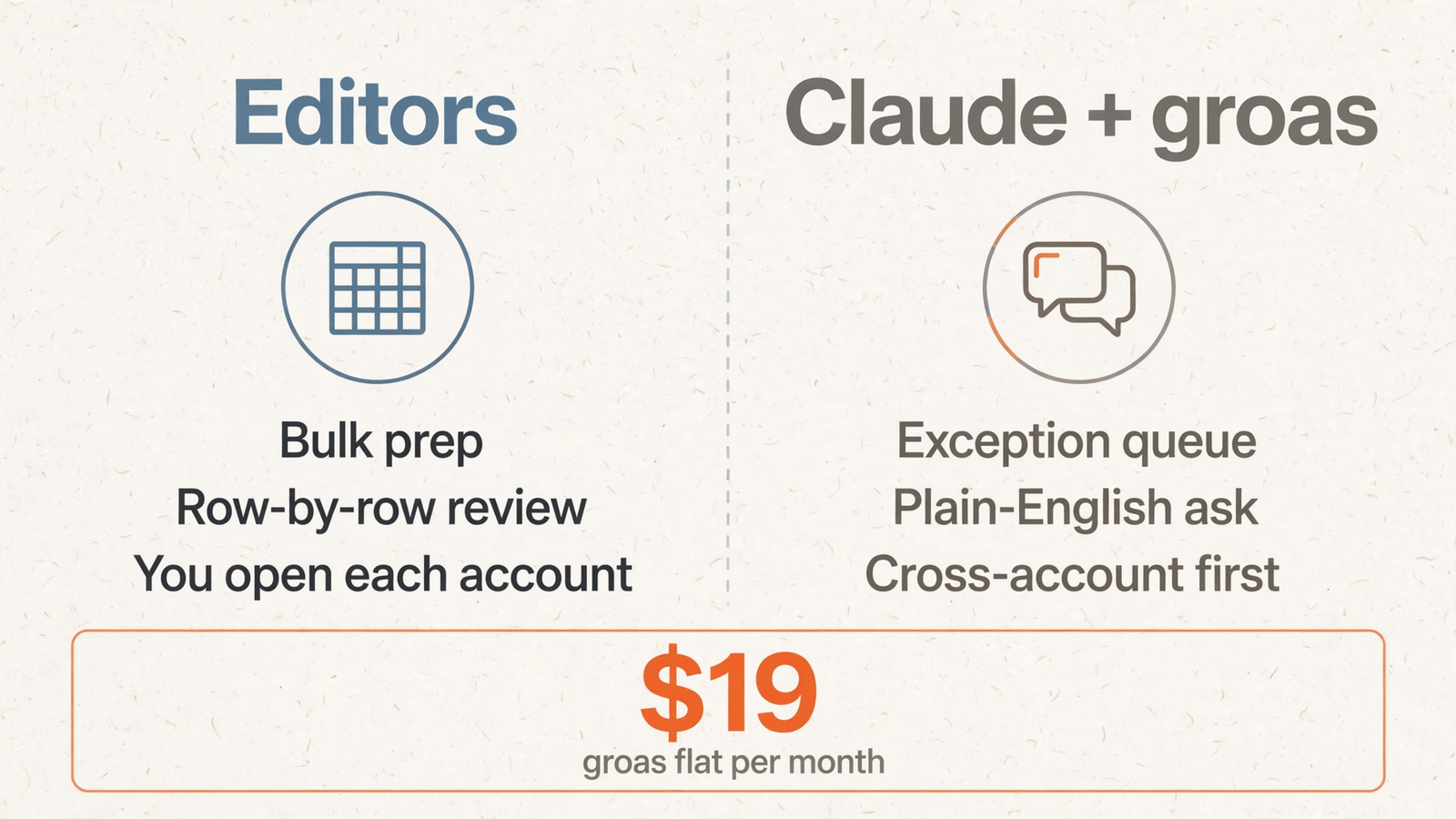
The Editors are free. groas Unlimited is $19 a month flat for the whole team, with unlimited teammates, ad accounts and websites, and every feature and all the data included. That’s the groas price: it doesn’t rise with the number of client accounts I connect.
The Editors don’t need the extra step of connecting Claude to groas over MCP. For triage to work, the Google Ads and Microsoft Advertising accounts also have to be connected. When I compare accounts that report differently, I still give Claude the IDs, currencies, dates and conversion definitions. If an account won’t connect or the conversion lives in a CRM the connector can’t reach, I leave that account out of the queue. I can still use the Editor for known changes there; I don’t pretend it can fill in the missing conversion data.
The recurring trade is where I spend my review time. An Editor grid is good for inspecting a known batch row by row. A groas queue lets me start with the accounts worth investigating, and the reason log gives me something to check after an approved change. Neither saves me from defining the scope. Only one saves me from opening every account just to decide where to start.
Open Claude first on Monday
I’d run the exception prompt across Google and Bing, take the top two accounts, and ask Claude to explain each proposed change and its destination. I’d approve only the named changes and check the reason log once they land. If triage turns up a known construction job, a rename, a location-negative rollout or a structure copy, I’d move it to the Editor: build it, preview it, save the original, post it and verify it live. For the weekly version, Twenty Accounts, 45 Minutes walks through capping approvals and sequencing the checks before touching a budget.
The Editors aren’t obsolete. They’re construction tools. Those of us who used to live in them got used to opening them before we knew what we needed to build. That wasn’t a workflow worth keeping just because it was familiar. Choose the tool by the work left after bidding is automated: Editors for the batch you’ve already decided on, Claude + groas for finding what you haven’t decided on yet.