

 LinkedIn

Stop opening a different tab for every client. I use one groas MCP connection to bring Google, Microsoft and Meta account work into Claude, with per-account rules keeping each client’s changes inside agreed limits.
By the end of this setup, Claude will be able to read spend, propose fixes and make approved changes across connected client accounts. One connector, a flat $19/month for the agency, and rules set per client. The point is fewer account switches, not fewer controls.
Before starting: get access without taking ownership
Have these three things ready:
- A groas Unlimited account. The $19/month flat price covers unlimited teammates, ad accounts and websites. Adding a client does not mean buying another account slot.
- Claude access that allows a custom connector. Check that the login you intend to use can add one. On Team or Enterprise, involve the organization Owner before starting. The Claude connector setup instructions cover the installation flow.
- Client approvals, not client passwords. Keep ownership with each client and have them approve your agency’s access. For Google, that means an MCC link request. For Meta, the client shares access with your Business portfolio. For Microsoft, the client accepts your agency link.
I used to tell clients to hand over logins. I was wrong. Client-owned accounts with approved agency access survive staff changes and awkward offboardings. Follow that agency-sharing pattern before connecting anything to Claude.
Step 1: Add the groas connector to Claude
Open Customize → Connectors → + Add → Add custom connector. Name it groas, paste the URL below, leave the detected sign-in options alone, then click Add → Connect and sign in.
https://mcp.groas.ai/mcp
On Team or Enterprise, have an Owner add it through Organization settings → Connectors → Add → Custom → Web. Each teammate then clicks Connect and signs in.
For Claude Code, use:
claude mcp add --transport http groas https://mcp.groas.ai/mcp
Then check the connection with:
/mcp
Expected result: groas appears in Claude’s connector list. Account data comes next, after connecting the ad accounts.
Common mistake: treating an installed connector as proof that client access works. It proves the connection exists, not that every client account is available. If Connect spins, sign in again in a fresh session before changing the setup.

Step 2: Connect and confirm each client’s ad accounts
Connect the ad accounts inside groas, not separately in every Claude chat. Use the agency’s manager access where available, then confirm which client accounts actually appear. Do not assume a connected manager account means every client is ready.
Complete the platform-specific approval first:
- Google Ads: send the client a request from your MCC through
Accounts → Sub-account settings → Link existing account, using their 10-digit Customer ID. The client accepts underAdmin → Access and security → Managers. The ID alone grants nothing; a client Admin must approve the link. The client can unlink later. That is how Google agency linking works. - Meta: ask the client to share their ad account with your agency’s Business portfolio ID. Do not take ownership.
- Microsoft Ads: send the client-link request from your agency account. Ask the client’s Super Admin to accept it; unaccepted requests expire after 30 days.
Once the accounts are connected, ask Claude:
Through groas, list every connected ad account with its platform,
account name, account ID and currency. Do not make changes.
Expected result: the returned account list matches the clients and platforms you intend to manage. Check IDs, not just familiar-looking account names.
Common mistake: connecting a personal ad account when the work belongs under agency manager access. Another is moving ahead while the client’s approval is still pending. Resolve missing accounts now, before building reports around an incomplete list.
Step 3: Create one Claude project per client
Create a separate Claude project for each client. Put the client’s account IDs, currencies and goals in its instructions. Then name the account ID again in each working prompt.
The one-project-per-client pattern keeps context organized. It is not a substitute for account permissions or per-account rules. A project name is a label, not an access boundary.
Use this as an instruction template, replacing every placeholder:
Client: [client name]
Google Ads account ID: [ID]
Microsoft Ads account ID: [ID]
Meta ad account ID: [ID]
Currency: [currency]
Primary goal: [goal]

Use only the account IDs listed above for this client's work.
Default to read-only analysis.
Before proposing changes, state the account ID and date range.
Do not apply changes until I explicitly approve the exact list.
Run a scoped test. Replace the example name and ID first:
Through groas, for Acme only, Google Ads account ID 123-456-7890:
list campaigns with more than $50 spend and zero conversions
in the last 7 days. State the account ID and date range.
Do not make changes.
Expected result: Claude returns a filtered list for the specified account, not an agency-wide waste report.
Common mistake: asking “check all accounts for waste” inside a client project and assuming the project title does the scoping. Name the client, ID and date range. Make that the team’s default, even when the conversation already contains them.
Keep the plain-English MCP glossary handy if connector terminology slows down the setup. The important habit is simpler than the vocabulary: scope every request.
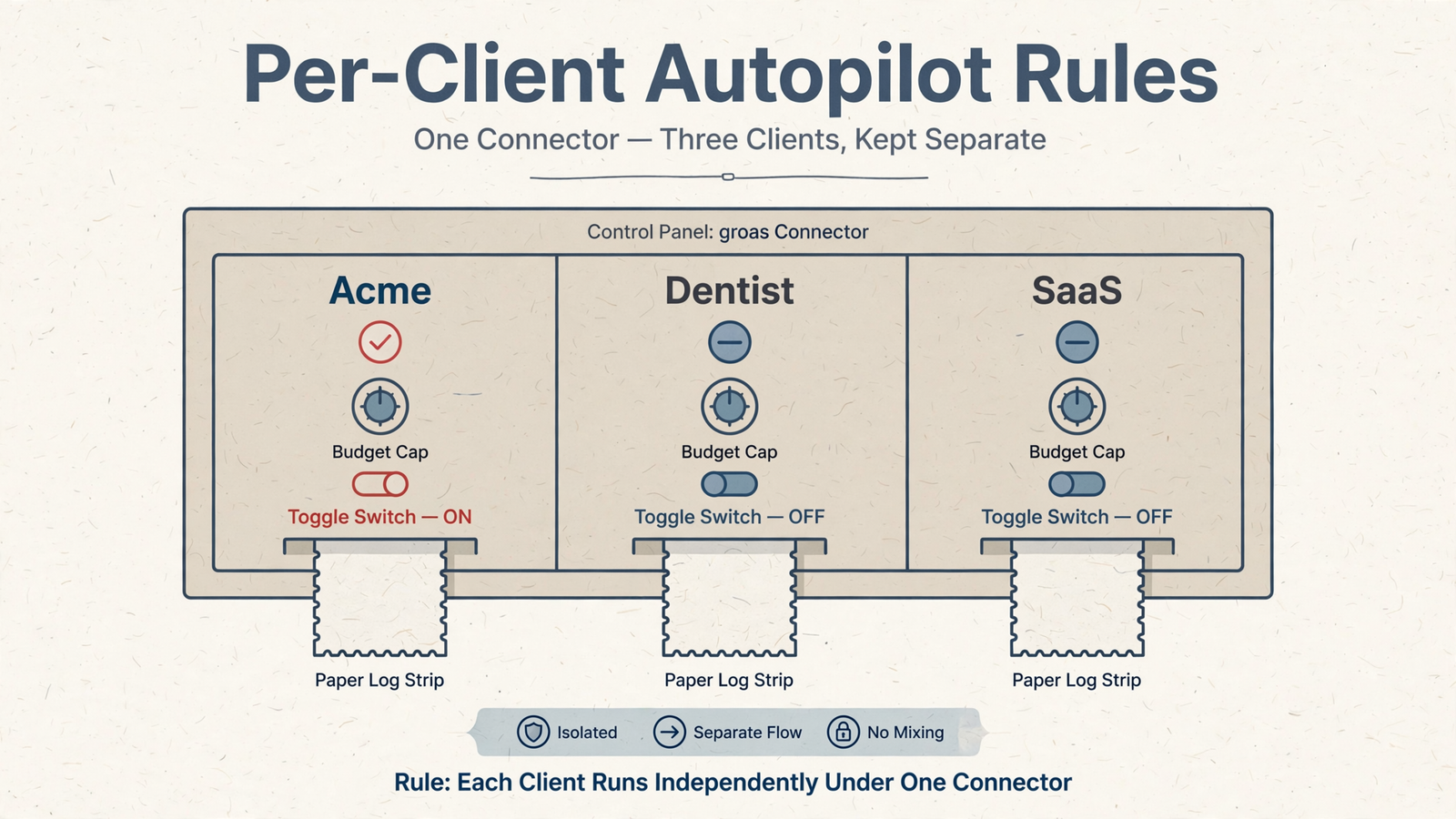
Step 4: Set per-client rules before enabling autopilot
Leave autopilot off while setting the client’s goals, budget and operating rules in groas. Define four things before enabling it:
- The daily budget cap.
- The CPA ceiling.
- The campaigns autopilot may change.
- The changes that require approval first.
Start with one client, not the whole agency. My default is bid and budget pacing inside agreed caps, with everything else proposed first. Keep the scope boring until the log gives a reason to widen it.
Use the client project to record the agreed rules too. Keep those instructions consistent with the actual groas rules; writing a limit in a chat is not the same as configuring that limit.
Expected result: one client has explicit operating limits, a defined approval process and a clear record of what autopilot may do. Every change is logged with its reason and can be undone.
Common mistake: switching autopilot on for every client at once. Start with one, review a week of logs, then move to the next. One client lets the team inspect the rules. Ten clients mostly create ten places to inspect.
Step 5: Connect teammates without sharing a Claude login
Invite the team to the same groas account. Unlimited teammates remain part of the same $19/month price.
On Claude Team or Enterprise, the Owner adds groas through Organization settings → Connectors. Each teammate then selects Connect and signs in using their own login.
For Claude Code, choose the scope deliberately:
localfor a single-project test.projectthrough.mcp.jsonwhen the project team needs the connection.userwhen the connection belongs across that user’s projects.
Expected result: teammates can connect through their own Claude logins and work in the appropriate client projects. Have each person repeat the read-only account check before making changes.
Common mistake: sharing one Claude login because it seems quicker. It makes responsibility harder to follow. Keep individual logins, account IDs in prompts and client-specific rules; unlimited seats remove the excuse for a shared agency login.

What to ask Claude once the accounts are connected
Through groas, Claude can work with account data and the market context around it: spend, CPA, search terms, budget pace, competitor ads, landing pages, funnels and customer comments collected from Reddit.
That gives the analysis something more useful than a pasted export. Claude can examine the numbers, propose negatives or replacement copy, and make approved account changes through the same connection. Read first, inspect the proposal, then approve the write.
For a search-term review, use:
Through groas, for Acme, Google Ads account ID 123-456-7890,
last 7 days: list search terms with more than $25 spend and
zero conversions. Propose exact-match negatives.

Show the account ID, proposed negatives and reason for each.
Do not apply anything.
The useful part is not typing “find waste.” It is getting a scoped proposal that can be checked before it touches a client’s account. A zero-conversion list is a review queue, not permission to pause everything in it.
Keep analysis and execution separate until the team has a reliable review habit.
Step 6: Check approvals, logs and undo before widening access
Write down who approves changes for each client, what autopilot may do alone and what waits for a human. Run the MCP security checklist before moving a client into write-enabled work.
Use this instruction at the start of an analysis chat:
Read-only until I explicitly approve an exact change list.
For every proposed change, show the client, platform, account ID,
campaign, action and reason. Do not apply the proposal yet.
Treat that as a working instruction, not a replacement for configured permissions. Then check the operational controls:
- Approvals: confirm the proposal identifies the exact account and changes before approving it.
- Change log: review changes by client and account ID, including the reason for each.
- One-step undo: when a change is wrong, revert that change and tighten the relevant client rule before repeating it.
Expected result: the team can identify what changed, why it changed and how to reverse it without digging through an agency-wide conversation.
Common mistake: treating a prompt that says “ask first” as the entire control system. Use prompts to make work explicit and groas rules to define the operating limits. If the change and its reason cannot be traced, keep autopilot off for that client.
Troubleshoot the failed check, not the whole setup
A missing account and a disconnected connector are different problems. Start with the smallest check that failed.
| Symptom | First check | Next action |
|---|---|---|
| groas is missing in Claude | Open Customize → Connectors | Reconnect and sign in again. |
| One client is missing | Check the client’s platform approval and the connected account list | Resolve the link request, then list accounts again. |
| Numbers are blank | Confirm the account ID, date range and client access | Repeat the request with those details explicit. |
| An answer mixes clients | Check whether the prompt names one account ID | Rerun it for that account only. |
| A teammate cannot find groas | Check whether the organization Owner added it | Have the teammate select Connect after installation. |
| Changes lack clear reasons | Inspect the client’s rules and change log | Keep autopilot off while resolving the gap. |
Do not rebuild the client project to fix an unaccepted account invitation. Claude cannot read an account the agency has not been granted access to.
Step 7: Verify one read and one approved change
First, check coverage across the agency:
Through groas, list every connected ad account by client.
For each, show platform, account ID, currency and yesterday's spend.
Do not make changes.
Compare the result with the account list from Step 2. Success means the expected clients, the correct IDs and actual account data. A plausible-looking answer is not the test.
Next, open one client project and run a narrowly scoped review. Pick the smallest-retainer client, inspect the proposed changes and approve one useful action, such as adding reviewed exact-match negatives. Do not make a pointless change just to prove that writing works.
Check the log immediately:
- Confirm the correct client and account ID.
- Confirm the applied change matches the approved proposal.
- Read the recorded reason.
- Confirm the undo option is available.
Common mistake: declaring the agency setup finished after the connector answers one question. The read proves data access. The approved change and log prove the working loop.
Once that passes, change the Monday routine first. Stop opening ten tabs. Run one Claude pass per client project, inspect the proposed fixes, approve the exact list and use the log to draft the client email. One connector, separate client rules, less account-switching. That is the setup earning its place.


