
 LinkedIn

Connect Facebook Ads to ChatGPT and you can pull a live report without exporting a CSV. The first mistake is trusting the green connected badge before you know which ad account ChatGPT can actually read.
I know the spreadsheet version of this mistake: hand someone the wrong account, ask for a recommendation, and get a perfectly reasonable answer for a different business. Chat makes the mix-up easier to miss. The answer can sound confident enough to make you pause a campaign before you notice it’s not even your campaign.
A useful connection passes two checks: ChatGPT names the right Meta ad account, then returns numbers you can match in Ads Manager. The account ID tells you which account you’re reading. The report tells you whether you can reproduce the numbers. The shortest safe setup ends there, not with permission to change a bid.
What do I need before I connect?
I’d have three things ready:
- A ChatGPT plan and workspace that support custom MCP connections.
- A groas account. groas Unlimited is $19 a month flat for the whole team, with unlimited teammates, ad accounts, and websites.
- Permission to connect the Meta ad account you want to read.
With ChatGPT + groas, ChatGPT handles the conversation and groas supplies the account data over MCP. If you later approve a change, groas makes it in Meta and logs it. You don’t need to make a single change to test the connection. I’d get the read working first.
How do I connect ChatGPT and authorize Meta?
There are two separate approvals. First, you authorize ChatGPT to talk to groas. Then you authorize groas to access your Meta ad account. Passing the first step tells you nothing about whether you picked the right account in the second.
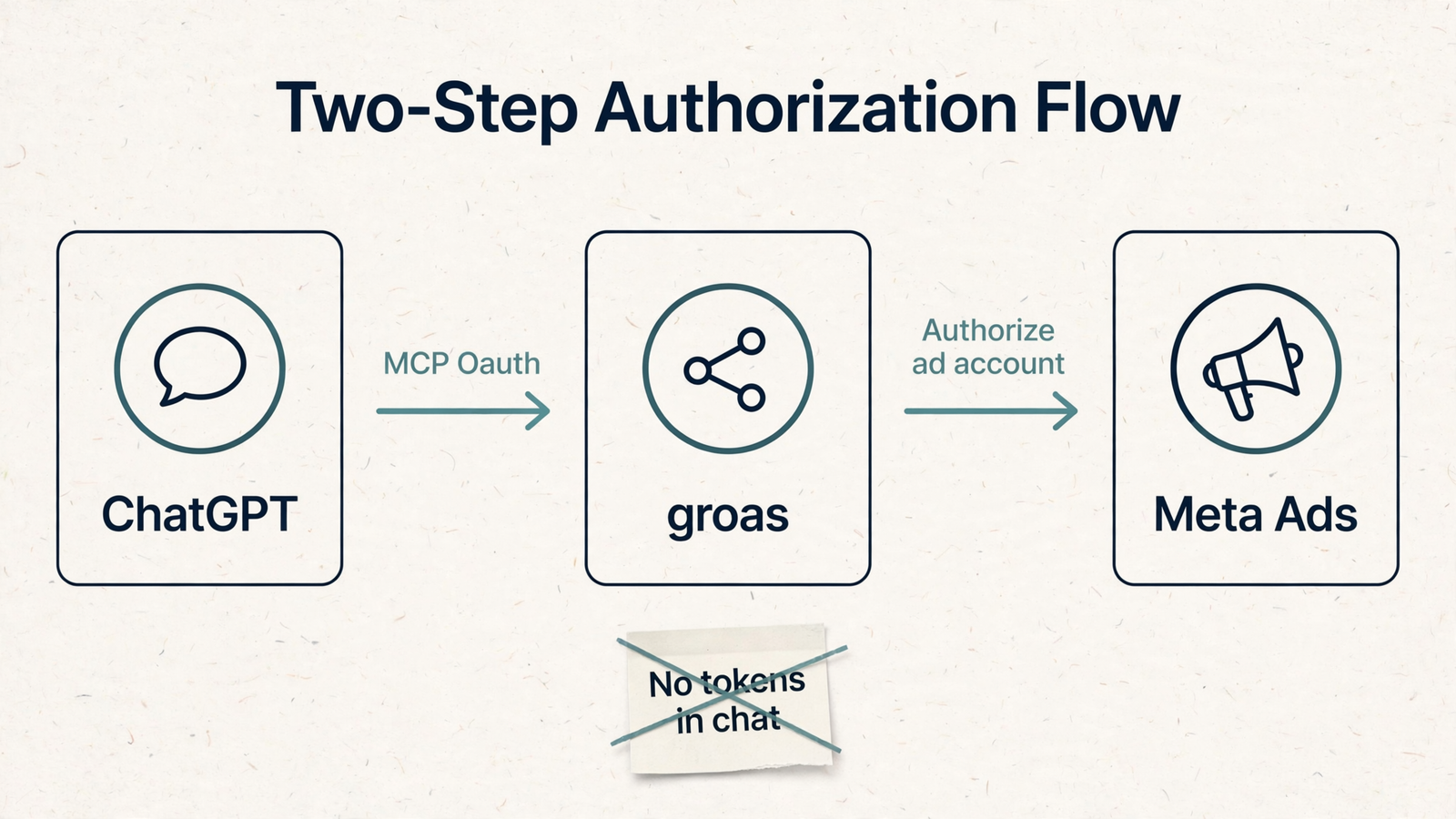
- Add the groas server. Open Plugins in ChatGPT, click +, and choose Add custom MCP server. Name it
groasand enterhttps://mcp.groas.ai/mcp. If you don’t see the option, check your plan and workspace before going any further. Skip the old Developer Mode instructions; they’re not part of this flow. - Choose OAuth, review the tools, and sign in. Set authentication to OAuth, review the risk notice, choose Create as a plugin, review the tools, and install it. Sign in when prompted. groas’s ChatGPT connection uses a sign-in window, not an API key field. If the tool list is empty after installation, check the endpoint and sign-in before trusting the badge.
- Authorize Meta inside groas. Connect the intended Meta ad account and approve access through Meta. Do this in groas, not in the ChatGPT conversation. Never paste an ad account access token into chat as a substitute for OAuth. It doesn’t prove which account you meant to connect.
- Select groas in a fresh chat. Type
@and select groas before you ask about your ads. If you can’t select it, stop. A fluent answer about Facebook Ads is not evidence that ChatGPT has read yours.
Which Meta ad account can ChatGPT read?
The first prompt should return almost nothing interesting. That’s the point. Before I ask for spend, purchases, or a diagnosis, I want an account ID. Meta’s own MCP verification steps make the same distinction: check that the tools are available, then run a read-only operation that returns data rather than an authentication or permission error.
List the Meta ad accounts available through groas. Show their IDs and currencies. Do not change anything.
Match the account ID in Ads Manager, not just the account name. Check the currency while you’re there. If the response gives you a test account, a personal account with no spend, or somebody else’s account, don’t ask for performance. Numbers from the wrong business can look entirely plausible. Even if the list contains only one account, check its ID rather than assuming it’s the one you meant to connect.
A Meta MCP troubleshooting thread shows why I wouldn’t settle for whichever account appears first: a practitioner reported that a business account returned is_ads_mcp_enabled: false while an empty personal account showed true. A returned account isn’t necessarily the one you need. If yours is missing, fix the authorization or check eligibility, then run the list again. Don’t treat an absent account as one that spent nothing.
What’s the first live report I should ask for?
Ask for one report you can reproduce by hand. No campaign breakdown, no diagnosis, no “what should I pause?” yet. Replace [ID] with the account ID you just checked:
For account [ID], show spend and reported purchases for the last seven complete days. State the dates, timezone, currency, and attribution settings available to you. Do not change anything.
Those details tell you what to match in Ads Manager. Use the dates in the answer, not a date preset that sounds close, and leave today out of both views. If the dates drift or the purchase event differs, you’re comparing two reports that happen to have similar labels. If ChatGPT can’t tell you which dates, timezone, currency, or attribution settings it used, you don’t have enough to reconcile the answer.
In one Facebook Ads reporting thread, practitioners described Claude mixing up clicks and unique clicks, and CTR and unique CTR, over Meta MCP. The fix they settled on was less glamorous than the demo: ask for exact field names and raw values, pin down the date range, reporting level, and attribution, then compare against Ads Manager. The Adrio verification checklist makes another useful distinction: if a field is missing, say it’s missing. Don’t turn it into a zero.
How do I match the report in Ads Manager?
- Open the account with the same ID. Don’t assume the account already open in Ads Manager is the one ChatGPT used.
- Set the same reporting window. Match the seven complete days and check the timezone and currency. Use the same attribution setting and purchase event.
- Compare spend and reported purchases separately. If spend matches but purchases don’t, check the purchase event and attribution before calling the report verified. A small difference you can explain by reporting delays isn’t the same as a gap you’re waving through because the rest looks right.
An unexplained mismatch means stop, not optimize. Check the account, dates, and reporting settings again before asking for advice. In a weeks-long test of Meta’s official MCP server, the tester found reporting useful but caught the model inventing numbers twice on complex questions with multiple breakdowns. That’s why I start with one small report. If it matches, you’ve verified that read. You haven’t verified every answer the model will give you next week.

When should I let ChatGPT propose or make changes?
A verified read is not approval to write. I treat reporting, execution, and autopilot as three separate decisions:
- Reporting: ChatGPT reads the account and answers questions. This is what you’ve just tested.
- Execution: ChatGPT proposes a specific change. You review it and decide whether to approve it.
- Autopilot: groas runs campaigns, an ad account, or a website under rules you set. It stays off until you switch it on. Changes are logged with their reasons and can be undone in one step where the platform allows it.
If all you want is reporting, stop there. If you want to test execution, start with a proposal that leaves the approval step in plain sight:
For account [ID], propose one change that would reduce wasted spend. Show the evidence from the last seven complete days, the exact change you would make, and what you expect it to affect. Do not apply anything. Wait for my approval.
Read the proposal before you approve it. Does it cite the numbers you checked? Does it name the exact change? Can you tell what it expects to affect? “Improve efficiency” isn’t an answer to any of those questions. If the evidence doesn’t hold up, reject the proposal. If it does, say explicitly whether you approve the change. Asking for a better explanation isn’t the same as telling ChatGPT to go ahead.
OpenAI’s custom MCP guide says write actions require confirmation by default. I’d still name the app and tool I want used and say whether I’m asking for a proposal or approving an action. If you’re using Meta’s own Ads MCP server, Meta’s Business Suite controls let you allow or block actions by account, set a budget cap, and save new campaign work as a draft for review. Those controls are for that server. They’re not a substitute for reviewing a proposal in groas. Before approving a pause, read 6 Myths That Lead ChatGPT to Pause the Wrong Facebook Ads.
What do I check if the connection doesn’t work?
I troubleshoot in this order. There’s no point debugging a purchase field if ChatGPT can’t see the account.
- No option to add a custom server. Check your ChatGPT plan and workspace settings. Support varies, and some tiers only offer read access. Don’t spend an hour rewriting a prompt to fix a missing connector option.
- Tools are visible, but the account is missing. Re-run Meta authorization inside groas. Check that you’re signed into the Facebook account with permission to manage the ad account you want. Meta’s standard Ads MCP setup requires that account permission and a Facebook login, not developer credentials. If the intended account still doesn’t appear, check whether it’s eligible for access instead of asking ChatGPT to find it another way.
- The wrong account appears. If all you see is the wrong account, disconnect and reauthorize with the correct Facebook login. Run the account-list prompt again. Once you have the right ID, include it in your reporting prompts so there’s no guesswork about which account to read.
- The account is right, but reporting fields are missing. If you get spend without purchases, or totals without the settings you need to check them, ask for the exact field names and raw values. If the fields still aren’t available, stop. A failed retrieval is not zero spend or zero purchases. It’s a failed retrieval.

One workaround I’d skip here: uploading a CSV. An export gives ChatGPT a one-time snapshot. It doesn’t prove that ChatGPT can read the live account or pull the next report. If you need a more detailed installation walkthrough, use Connect Facebook Ads Manager to ChatGPT Without the CSV Shuffle, then come back and run the two checks.
What should I do today?
Add groas over MCP, authorize Meta, and run the account-list prompt. When you’ve confirmed the right ID, pull spend and reported purchases for the last seven complete days. Open Ads Manager and match the report by hand. If it matches, start with reporting. Leave changes for a separate decision. If it doesn’t match, fix the discrepancy before asking ChatGPT what to do with your budget.
The win isn’t getting Facebook Ads to show as connected. It’s knowing which account ChatGPT read and proving it with a report you checked yourself. Do that today. Leave the pause button alone.