
 LinkedIn

Claude says Connected. I still wouldn’t pay for another connector until it can show me one spend figure I can match in Meta Ads Manager. I’ve watched advertisers replace a connector that logged in just fine but couldn’t see the account they wanted. A successful login proves who signed in, not what Claude can read. Run these eight checks in order. The point is to find the first thing that fails before you spend money trying to fix the last thing you noticed.
Before the checklist: Know what counts as a pass
- Treat sign-in as the identity check. MCP is what lets Claude use tools in another system. In Claude, go to Customize > Connectors > Add custom connector, add the server URL, sign in with Facebook, and select the business portfolios and ad accounts you want to connect. The Claude custom connector walkthrough and the groas setup for Claude show that sequence.
- Treat the account list as the scope check. Claude needs to identify the exact business and ad account you want, including the account’s numeric ID. Seeing an account is not the same as seeing yours.
- Treat a matched report as the read test. Claude needs to return a dated spend figure for that account that matches Ads Manager. Until then, you know the connection exists. You don’t yet know whether you can use it for analysis.
1. Identify the Meta connection you installed
- Ask for the server and provider by name. Use: “Name the MCP server you would use for Meta Ads and its provider. Is it Meta’s official server or a third-party connector? Make no changes.”
- Pass: You can identify which connection Claude is using and which set of troubleshooting instructions applies. Fail: The answer is just “Meta Ads,” with nothing that tells you which server is doing the work.
- Follow the instructions for the connection you installed. Meta’s official server at
https://mcp.facebook.com/adshas its own rollout and client restrictions. Third-party connectors that use the standard Marketing API don’t depend on that rollout. Don’t spend an afternoon applying an official-server fix to Windsor, Pipeboard, or groas.
2. Confirm the exact business and ad account
- Ask Claude for account names and numeric IDs. Use: “List the Meta ad accounts this connection can access, with their exact names and IDs. Make no changes.” If you manage multiple businesses, name the business you’re checking in the same prompt.
- Pass: The list includes the account you intend to analyze, under the right business, with an ID that matches the one in Ads Manager. Fail: Claude gives you a vague account description, lists the wrong business, or leaves out an account you expected the connection to see.
- Check what you selected during setup before you start changing permissions. If Claude lists one account and you run five, the useful question is whether the other four were selected, not whether Claude can write a more convincing summary of the one it found.
3. Check the Facebook profile’s role on that account
- Verify the same profile you used to sign in. In Ads Manager, confirm that the profile can manage ads on the exact account, inside the correct business portfolio. Access to the portfolio alone isn’t the check; look at the permissions on the account.
- Pass: The signed-in profile has permission to manage campaigns on the account. Fail: It’s the wrong profile, or it has view-only access where the connection requires permission to manage ads.
- If you see
You can't connect to Ads MCP server with this account, check the profile’s account role first. Disconnect if you need to verify which profile you used. Reconnecting the same profile three times doesn’t change what that profile can do.
4. If you use Meta’s official server, check rollout eligibility
- Ask for the account’s
is_ads_mcp_enabledvalue. This check is for Meta’s official MCP server only. Skip it if you’re using groas or another third-party connector over the Marketing API. - Pass: The flag is
truefor the account you want to test. That clears the rollout check, not the read test. Fail: The flag isfalse, or you seeAds MCP is gradually being rolled out. Please check back at a later date. - Don’t use another account in the same business as proof. The flag can differ across accounts, even when the login, permissions, and setup are correct. A
falseon the official server isn’t a diagnosis for a third-party connector.
5. Request one small, dated performance report
- Ask for one account and seven complete days. Use: “Show spend and results for [exact account name + numeric ID] for the last seven complete days. State the start and end dates, the currency, and what counts as a result. Make no changes.”
- Pass: Claude identifies the account, gives the dates and currency, defines the result, and returns a spend figure you can check. If the account spent during those dates, the figure shouldn’t be zero. Fail: The answer omits the account or dates, blends multiple accounts, or gives you commentary instead of a spend figure.
- Keep this test small. Listing accounts tells you what the connection can see by name. It doesn’t tell you whether the connection can pull performance data for any of them. One dated spend figure gives you something to check without first sorting through a page of recommendations.

6. Match Claude’s spend figure in Ads Manager
- Open the same account and match the report settings. Use the same start and end dates, ad-account time zone, attribution setting, and campaigns, ad sets, or ads in scope. Check the currency before comparing the figures.
- Compare spend first. I start there because it settles faster. If you’re checking the rest of the report, compare impressions and clicks next, then conversions. If spend matches but conversions don’t, check the attribution window and late-settling data before calling the connector broken.
- Pass: Spend matches within rounding for the same account and dates. Fail: It’s off by more than rounding. Stop and recheck the account ID, dates, time zone, currency, and scope. If those line up and spend still doesn’t, you have a discrepancy to send to the provider, not a report to act on.
7. Set write permissions before asking what to change
- Set the account-side limits where they apply. If you’re using Meta’s official server, go to Business Suite > Settings > Integrations > Ads MCP server, select the account, and set the limits on campaign creation, edits, and budgets. If you can’t see that panel, check whether you have full control of the business portfolio before troubleshooting Claude.
- Set Claude’s write tools to Ask each time. Check create, edit, activate, upload, and delete. The tool approval settings are Always allow, Ask each time, and Block. Keep autopilot off during setup.
Analyze only, make no changesis an instruction, not a lock. - Don’t confuse created paused with read-only. On Meta’s official server, new campaigns, ad sets, and ads arrive paused, but edits to running objects apply like edits in Ads Manager. Activation is a separate action that can start spending.
- Ask for a proposal, not an edit: “Explain what you would change, without changing anything yet.” I leave write tools on Ask each time until check 6 passes twice. I want to know the numbers are right before I decide whether the proposal is any good. Prove read access before granting write access.
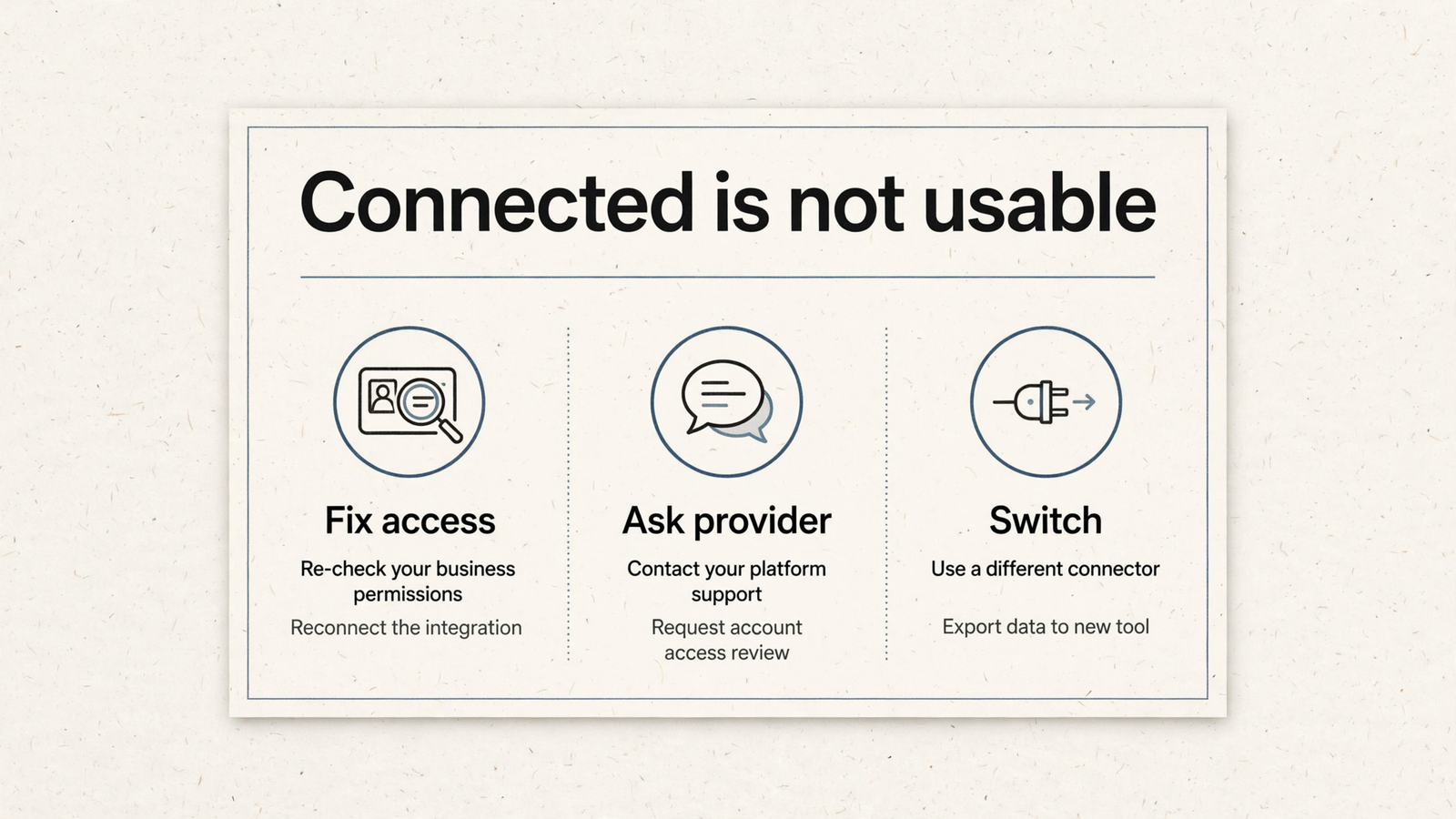
8. Decide whether to fix access, contact support, or switch
- Fix access yourself if you selected the wrong account, signed in with the wrong profile, or found view-only access where the connector needs a manage-ads role. Fix the specific failure, then rerun the account list and dated report.
- Contact the connector provider if the right profile has the right role and Claude still can’t list the account, return spend, or match Ads Manager after you’ve aligned the report settings. Send the exact account ID, the dated prompt, and Claude’s reply verbatim. Include the matching Ads Manager settings so the provider can see what you compared.
- Switch for a capability you actually need, not because a login screen and a report disagree. That could be Meta, Google Ads, and GA4 in one chat, several Meta accounts in one view, or read-only reporting with no write path. The full Best Meta Ads MCP for Claude: 10 Checks Before You Connect guide covers that decision. Another Meta-only subscription won’t fix an account you haven’t granted access to.
- Choose groas when the limit is the Meta-only setup, not the account permissions. Connect your ad accounts once, add groas to Claude as a custom connector at
https://mcp.groas.ai/mcp, and rerun checks 2, 5, and 6. Instead of paying for another Meta-only connection, you get marketing infrastructure your AI runs on, with unlimited accounts and competitor and market data at a flat monthly price. You still need a Facebook profile that can manage the account. groas doesn’t bypass Meta’s permissions or change an account’s rollout status on Meta’s own server.
Keep this acceptance prompt
Fill in the brackets and paste this into Claude. Use the exact account name and numeric ID, and pick dates you can open in Ads Manager.
For Meta ad account [exact name + numeric ID] only:
1. Name the MCP server and provider you will use.
2. List the ad accounts this connection can access, with their names and IDs.
3. For this account only, show spend and results for [start date] to [end date]. State the dates, currency, account time zone, and result definition.
Make no changes. Ask for approval before any create, edit, activate, or budget action.
- Check the reply for the provider, the account, and one dated spend figure. Then match that figure in Ads Manager. The prompt gives you something to verify; it doesn’t verify the answer for you.
- If a term trips you up, the Marketing MCP Glossary covers MCP, connectors, tool approvals, and autopilot rules in plain English.
The most-skipped check is the one that costs you
- Keep the receipts from check 6. Save the account ID, exact dates, account time zone, Claude’s dated spend answer, and an Ads Manager screenshot with the same settings visible. If someone else picks up the troubleshooting, they can see what passed without reconnecting everything and starting over.
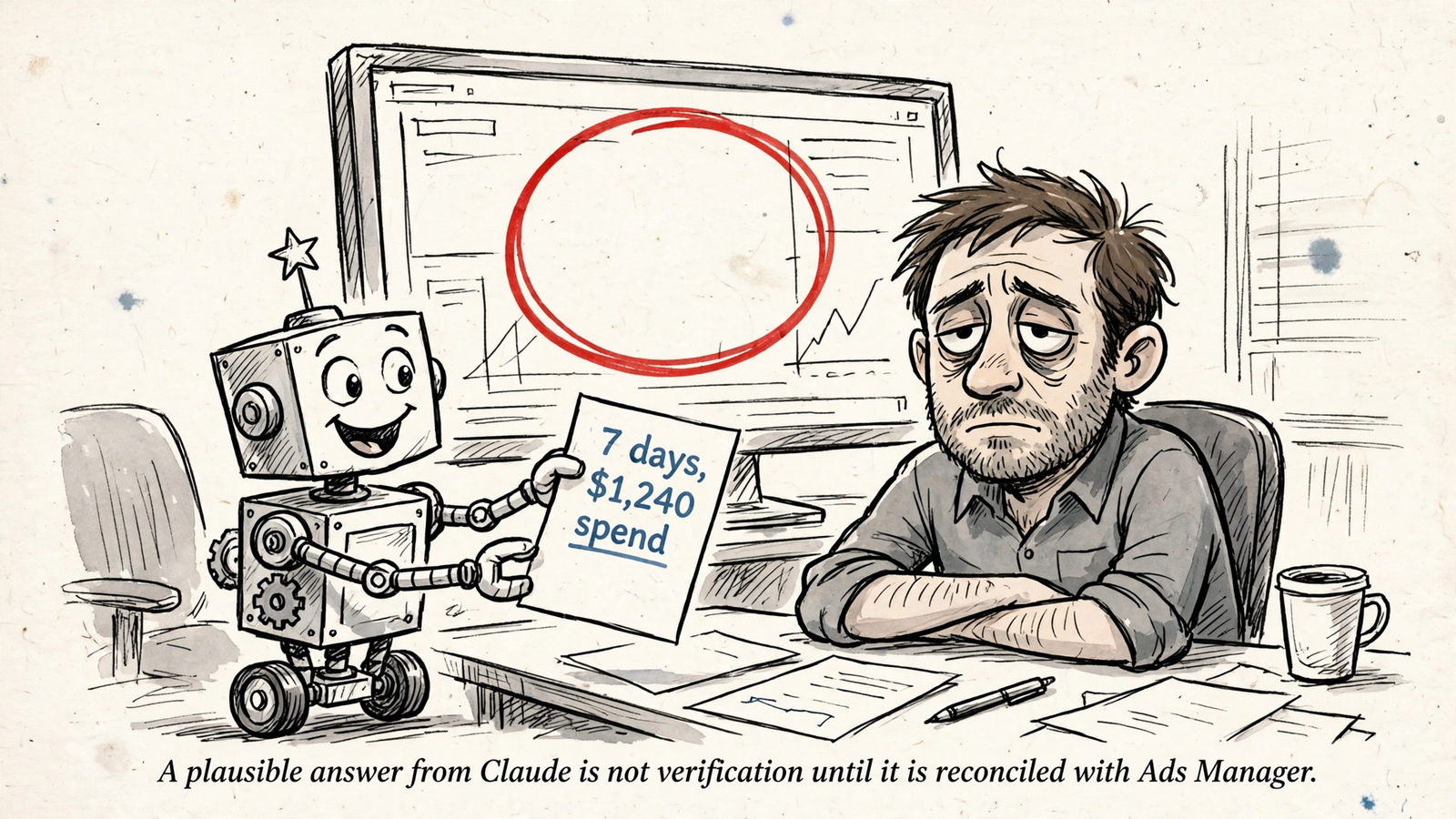
- Don’t accept a report because it sounds right. A few familiar campaign names and a plausible spend figure make it easy to jump straight to
analyze my ads and tell me what to fix. If the same account fails reconciliation twice, stop and resolve the mismatch before asking what to change. - Reconcile before acting. The cost of skipping this check isn’t just a second subscription. It’s pausing prospecting that was driving sales or raising the budget on a retargeting ad set that only looked efficient because the dates were wrong. Match the spend in Ads Manager first. Then ask Claude what it would change.