
 LinkedIn

Keep your Google Ads scripts and give ChatGPT one job: investigate exceptions, show its evidence, and wait for approval before changing anything. The first mistake is rebuilding automation that already works just to make room for the assistant.
Someone connects ChatGPT, asks for a full audit, then lets it pause keywords, shift budgets, and rewrite ads while the old rules keep firing. A week later CPA jumps and everyone blames the model. But if a script raises the same budget the assistant keeps lowering, the problem isn’t the model. It’s that two systems own the same decision. I used to tell clients a clean rebuild was faster. I was wrong. A clean rebuild is a good way to lose three years of edge cases buried in scripts.
I’ll walk through connecting ChatGPT to live account data through groas MCP, mapping what can overwrite a change, and taking one exception from diagnosis to approval. The finish line isn’t a tidy audit. It’s one campaign checked against its baseline and, if the evidence warrants a fix, one approved change that survives the next automation cycle.
What job should I give ChatGPT on day one?
Give it the work your scripts are worst at. A script is good at following a rule you can write in advance: pause anything above this CPA after this many clicks, move this budget on this schedule, add these negatives every Monday. Let it keep doing that.
Give ChatGPT the search term that suddenly spends $40 a day, or the campaign that runs fine for six weeks and then drifts 30 percent off baseline. Before you write another rule, you want to know what changed, whether an existing rule made the change, and whether that rule was doing exactly what you asked it to do. That’s diagnosis, not a standing instruction to push buttons.
Investigate one exception, explain what changed, propose one fix if the evidence supports it, and stop. Skip the full-account audit and the redesign. Neither helps you find out whether the assistant can handle one exception without stepping on a script.
What can ChatGPT see before I connect it?
A pasted export is a snapshot, not a live account. ChatGPT can draft copy, explain match types or bid strategies, and analyze the numbers you give it. It can’t see yesterday’s spend or tell whether a rule fired at 2 a.m. unless you supply that information or give it a connection that can read it.
I’ve watched people ask, “Why did this campaign break?” and hand over a sheet that ends on Monday. If a script raises the target CPA on Wednesday and spend doubles, the assistant is still looking at Monday’s settings. It can give you a perfectly coherent answer about the wrong account state. That’s the expensive kind of coherent.
Through groas MCP, ChatGPT can read the connected account, propose a specific change, and carry it out after you approve it. You can check the change in the log and undo it. Before you let it write anything, make it prove it can read the account you’re asking about.
How do I connect ChatGPT without touching my scripts?
Leave your scripts and rules running while you connect. This is a no-code setup, not a migration.
- Add groas in ChatGPT. In ChatGPT on the web, follow OpenAI’s custom MCP server setup. Name the connection
groas, enterhttps://mcp.groas.ai/mcpas the server URL, and use OAuth. Sign in through the sign-in window; you don’t need an API key for this flow. - Authorize your ad accounts in groas. Connect the accounts you want the assistant to use. Leave your existing schedules and rules alone.
- Run a live-read check. Ask: “List the connected accounts and identify the account and date range you’ll use. Do not change anything.” Then ask for yesterday’s spend and impressions by campaign. Pick one number and check it against the same campaign and date in Google Ads.
If the assistant summarizes your homepage or gives you a fetch count instead of campaign data, stop there. The groas teardown of 647 ChatGPT fetches makes the distinction plain: a page fetch isn’t an account read. Get the live read before you ask for a diagnosis.

What’s already changing this account?
This is the step people skip. It’s also the step that tells you whether an approved fix will still be there tomorrow. Before ChatGPT proposes anything, ask: “Read the available rules and change history. List what you can verify and what I need to supply.”
Then fill in the gaps yourself. Think about the script on a Sheets timer, the feed tool that pauses out-of-stock items, the freelancer’s rule under an old login, and the auto-apply recommendations you forgot you left on. I check by hand because I don’t trust my memory to produce that list.
- Start in Change history. Set the date range to cover the last shift in results. Filter by Tool, not by email: rules and scripts can act on behalf of the person who set them up.
- Check what actually ran. Open Tools → Bulk actions and line up Rules version history and Scripts history with the changes you found. Don’t assume a rule stopped when its creator lost access. A script, on the other hand, can remain listed after it stops running and need reauthorization.
- Write down what can collide. For each rule, script, or scheduled process, record its name, what it changes, how often it runs, and who owns it. If you decide a process needs to stop, pause it rather than deleting its configuration. Finding it isn’t a reason to stop it.
That list is your collision map. No assistant writes to a campaign until you can name what else writes to it.
Who gets to change what?
I use three columns: change type, owner, and what the other side does. The third column matters. It’s where “ChatGPT helps with budgets” becomes “ChatGPT reports a budget exception and does not overwrite the pacing rule.”
| Change type | Owner | What the other side does |
|---|---|---|
| Recurring bid, budget, and negative-keyword changes | Existing scripts and rules | ChatGPT reads and reports; it doesn’t overwrite scheduled changes. |
| One-off exception fixes | I approve the exact object and value | ChatGPT investigates, proposes the fix, and executes only what I approve. |
| Account-wide or structural changes | Off limits to ChatGPT unless I reassign them in writing | No campaign restructures, attribution changes, or feed edits in this setup. |
A chat instruction is not a lock. Before any write, check that the connection asks you to confirm the action. OpenAI’s MCP documentation explains how write confirmations work, including how approval can be remembered within a conversation. Don’t rely on a standing approval for this setup.
Give ChatGPT the working rule: “You may read the connected account. You may not change anything without my explicit approval naming the account, campaign, object, and new value. One change per approval. No batches.” If you can’t verify the confirmation step, keep the assistant on diagnosis. Don’t make a live budget the test of whether it understood you.
How do I run the first exception?
Pick one divergence and make the assistant earn the change. I start with: “Find one campaign where results diverged from its baseline over the last 14 days. Check recent automated changes before proposing a fix.”
- Get the baseline first. “CPA went from $42 to $61 on stable volume” gives you something to check. “Performance declined” gives you another question to type.
- Check what ran before the shift. Look for a rule or script that changed the setting. If a rule raised a bid yesterday for a reason, lowering it today without checking that reason is how you start the tug-of-war.
- Make the proposal specific. It needs five things: the account, the object, the exact change, the evidence behind it, and the rule or script it could collide with. If a field is missing, send it back. If the evidence doesn’t support a fix, stop at diagnosis.
- Approve one change, not the list. Name the account and campaign, then restate the old and new values. If the fix you’ve agreed on is a budget change, the approval reads: “Approved for Account X, Campaign X: change the daily budget from $200 to $240 only. Nothing else.” That’s the approval-first workflow on the groas ChatGPT pairing page, not permission to make adjacent edits.
One exception, one approval, one value. Verify that change before you take on another.

How do I know the change stuck?
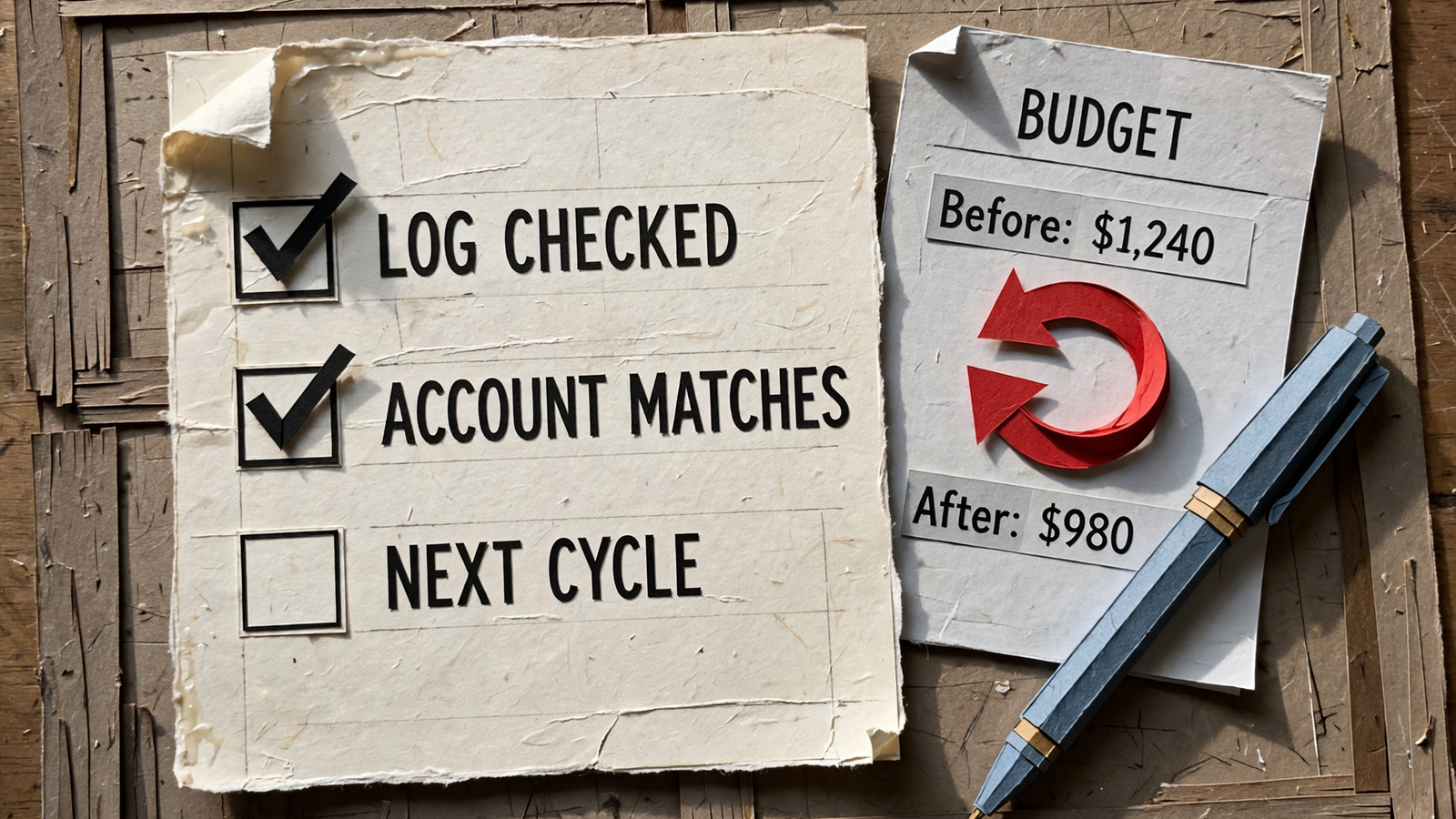
A sentence in the chat window is a claim. I want the receipt, the live setting, and a look at what happens when the old automation runs again.
- Check the groas action log. Ask for the entry that shows what ran, when, on which object, and why.
- Check the campaign. Open it yourself and confirm the live value matches the approval and the log. If the log and the account disagree, believe the account.
- Check after the next automation cycle. If the relevant script runs nightly, check after that run. If the rule fires on Friday, check after Friday’s run. If it reverses the change, fix the ownership line before you reapply anything. A second approval doesn’t settle who gets the last word.
Know which undo you’re counting on. In Google Ads, applied recommendations can be undone in Change history within 30 days, but partially applied recommendations can’t be undone there. For automated rules, only the most recent run of each rule can be undone directly. Undo can put a setting back. It doesn’t refund the spend.
Verify the log, verify the account, then verify the next cycle. The first two tell you it happened. The third tells you it stuck.
When should I turn on autopilot?
Not until one manually approved change survives a full automation cycle. Leave autopilot off while you’re still finding rules you forgot existed. If you turn it on later, write down which campaigns it can touch, what actions it can take, and where the budget caps are. Keep structural edits off the list and leave any spend move above your approval threshold out of autopilot’s remit.
Groas logs every autopilot change with its reason and lets you undo it in one step. That’s a safety net, not an answer to who owns the budget. The walkthrough on making an approved change with autopilot off shows the order I’d use before switching anything to always-on.
Today, do the smallest version. Connect through groas MCP and run the list-accounts prompt with no changes allowed. Check one campaign number against Google Ads. If it matches, open Change history and start naming what already writes to that campaign. Keep the scripts that work. Give ChatGPT the exception. Start with the read, not the write.